User Column Admin
 Updated
by
Arianne G.
Updated
by
Arianne G.
The User Column Admin module allows you to customise the column display in Advanced Search Results, Reinspection Queue, Claim Review Queue, and Calibration Queue. Create and edit personal column sets that may be shared with, but not edited by, other users in your company.
The screen shots in this document are generic, and your company’s interface may vary.
Related: Search, Reinspection Queue
Access User Column Admin
- Select User Column Admin from the Administration menu.
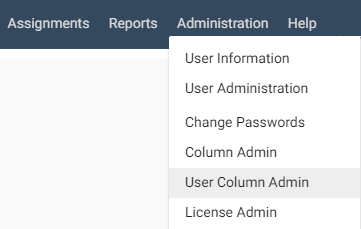
The Personal Column Management page appears.
Create a personal column set
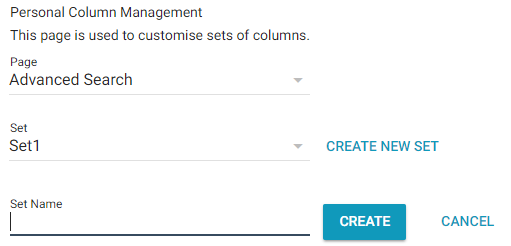
- In the Personal Column Management page, select a page from the Page menu. This determines which page in XactAnalysis your column set can be used in.
- Click Create New Set.
- Type the name of the new set in the Set Name field that appears.
- Click Create.
- Edit and save your new personal set (see Edit a column set below).
Edit a column set
- On the Personal Column Management page, select a Page and a Set.
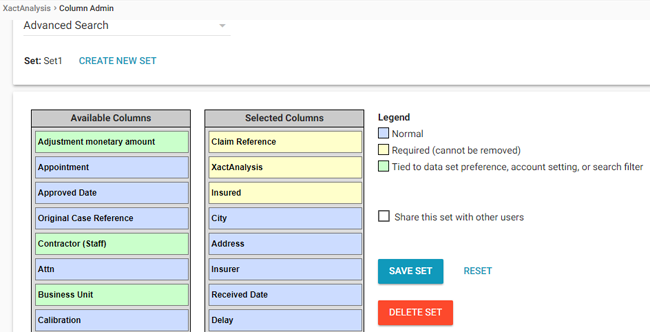
The Available Columns and Selected Columns tables appear. The column names that appear in Advanced Search Results or the Estimate Review Queue display in top-to-bottom order in the Selected Columns table. Column names shown in the Available Columns table do not currently display in Advanced Search Results or the Estimate Review Queue.
- Drag and drop column names to rearrange column order or move columns to and from the Available Columns and Selected Columns tables.
- Click Save Set to save the set and refresh the list.
- To make this column set available in Advanced Search for other users, select the Share this set with other users check box.
- To reset the columns back to their default position, click Reset.
- To make this your default column set, click Set As Default.
Select a column set in Advanced Search
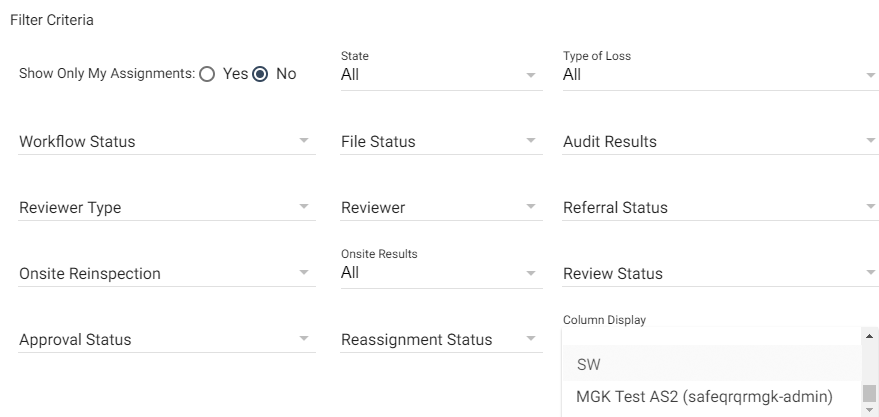
In Advanced Search, you can choose which column set appears in your Advanced Search Results page.
- Select a set from the Column Display drop-down menu in the Advanced Search Filter Criteria section. Your user ID appears next to your personal column sets.
- View the column set in your Advanced Search Results page.
User Column Admin components
Personal Column Management
The default start page for User Column Admin. From here you may view, edit, or create personal column sets.
Page
Select a page for the column set: Advanced Search Results, Reinspection Queue, Calibration Queue, or Claim Review Queue. The page you select determines which column sets appear in the Set drop-down menu.
Set
Displays the set name. Select a set to view/edit from this drop-down menu.
Create New Set
Click to create a new column set.
Set Name
Appears when Create New Set is clicked. Type the name of a new set here.
Cancel
Click to cancel creating a new set.
Selected Columns
Displays column names in the order they appear (top to bottom = left to right). Hover over a column name to view the column definition.
Available Columns
Displays column names that are available but will not appear. Hover over a column name to view the column definition.
Legend
Defines column type and display capability. Blue column names can be moved freely. Yellow column names are required and cannot be moved out of the Selected Columns area. Green column names can be moved freely and are based on your company’s preferences, settings, or filters.
Save Set
Click to save your changes.
Reset
Click to move column names back to their default position.
Delete Set
Click to delete the set you have selected.
Share this set with other users
This appears when editing a personal column set. Select this check box to make this set available to other users.
Column Display drop-down menu in Advanced Search
Select the column set you wish to see in your Advanced Search Results page.