Queue Admin
 Updated
by
Arianne G.
Updated
by
Arianne G.
The Queue Admin page allows you to add, edit, and delete rules for the Estimate Review Queue.
The screen shots in this document are generic, and your company’s interface may vary.
Access Queue Admin
There are two ways to access the Admin Queue:
- Select Queue Admin from the Administration menu.
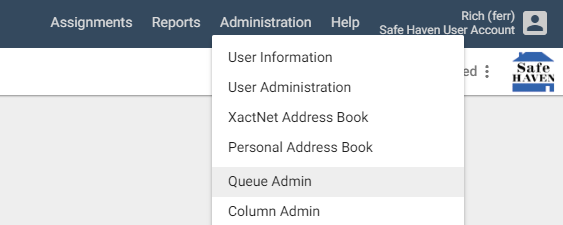
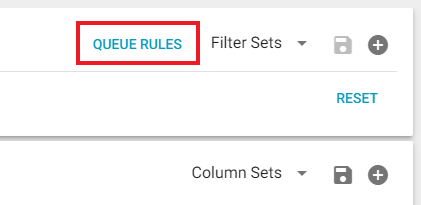
- From Search (Beta), click the Queue Rules button in the top right corner.
Filter rules
The Filters section allows you to select which types of rules are displayed, export the list to Excel, and change how the list is displayed.
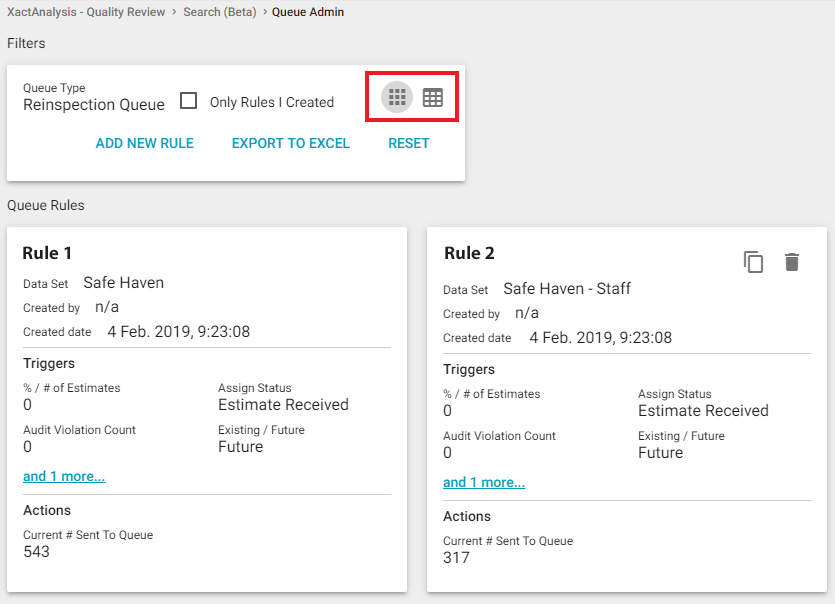
Only Rules I Created
When this check box is selected, the list only displays rules that you created.
Views
You can click either of the two icons in the right corner of the section to change the way the list is displayed (see image above).
- Table view displays each rule as a row in a table.
- Card view displays each rule as an individual card.
Export to Excel
Click this button to export all of the rules displayed in the list to an Excel spreadsheet.
Add a rule
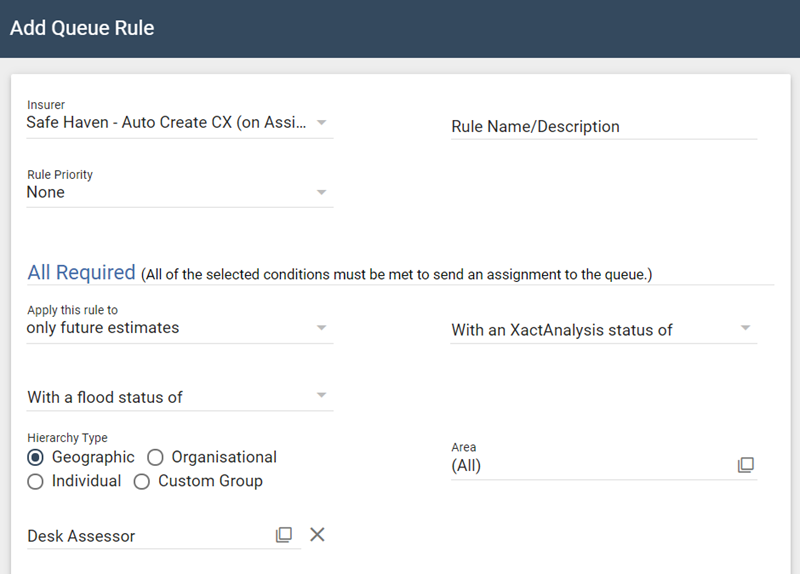
- Click Add New Rule. The Add Queue Rule dialogue box appears.
- Select the criteria for your rule and click OK. For more information about the fields and menus in this dialogue box, see Add Queue Rule fields and menus.
Add Queue Rule fields and menus
Data Set
Select one or more data sets to allow estimates from those data sets to enter the queue.
Rule Name / Description
Enter the name or description of your rule.
Rule Priority
Select a priority for your rule: None, 1 (First Group Processed), or 2 (Second Group Processed). The rules filter estimates based on priority. XactAnalysis will filter all the estimates with the first priority rule, and then filter the remaining estimates with the second priority rule.
ALL REQUIRED
All of the selected conditions in this section must be met to send an assignment to the queue.
Apply this rule to
Select to apply the rule to future or existing estimates
With an XactAnalysis status of
Select a status or leave it as (All). See Statuses for status definitions. If you select Cancelled or Client Approved, you can also filter by how that status is set (Automatically, Manually, or Either).
Hierarchy Type
Select a hierarchy type: Geographic, Organisational, Individual, or Custom Group.
Area
Select an area for the rule. Leave it as (All) to allow assignments from all data set (program) areas to enter the queue.
Desk Assessor
Select a desk assessor. Leave this field blank to allow estimates with any desk assessor to enter the queue.
For this CAT Code
Enter a CAT Code into the auto-complete field and select from the list. To enter more than one CAT Code, separate them by commas. Leave this field blank to allow estimates with any CAT code to enter the queue.
For this Claim Reference
Enter a claim reference. Leave this field blank to allow any claim number to enter the queue.
For these Countries/Regions
Select one or more countries/regions from the menu. Leave this field blank to allow estimates from any country/region to enter the queue.
For this Policy Type
Select a policy type from the menu. Select (All) to allow estimates with any policy type to enter the queue.
For this Coverage Type
Select a coverage type from the menu. Select (All) to allow estimates with any coverage type to enter the queue.
For this Business Unit
Select a business unit from the menu. Select (All) to allow estimates with any business unit to enter the queue.
For this Type of Loss
Select one or more types of loss from the menu. Select (All) to allow estimates with any type of loss to enter the queue.
For this Postal Code
Enter one or more postal codes (separated by commas) or a range of postal codes separated by “..” (for example 39200..39299). Leave this field blank to allow estimates from any postal code to enter the Estimate Review queue.
For date range between
Select a date range or select Monthly, Quarterly, or Annually from the menu. The rule will be applied to only estimates within the specified range or it will only be applied monthly, quarterly, or annually. Leave these fields blank if you do not wish to apply a date range to the rule.
1 of every (randomly)
Enter a number to set up random reviews for 1 of every [number] estimates.
Number of estimates
Enter a number of estimates to send to the queue. Select the per assessor/builder check box to send a specific number of estimates per assessor/builder.
For estimate value between
Enter a value range.
Job Type
Select a job type.
Overhead & Profit
Select whether to include estimates with O&P or No O&P. Select No Selection for neither.
Number of trades are
Select whether or not to include estimates with greater than or less than a certain number of trades, or select No Selection for neither. Enter the greater than or less than number in the provided field.
Selected trades
Select a trade.
Contains pricelist category
Select a country, then select a pricelist category from the menu.
Activity Diary Report Uploads
Select the check box to exclude activity diary report uploads.
Test Assignments
Select the check box to include test assignments. Leave unchecked to exclude test assignments.
ONE REQUIRED
Only one of the selected conditions in this section must be met to send an estimate to the queue. This section appears when you select Apply this rule to only future estimates in the All Required section.
Audit Results
Select Any to send estimates with any audit results into the queue. Select Specific and one or more audit results from the list that appears.
Audit Violation Count
Enter a number. All estimates with that number of violations are sent to the Review Queue. Select the Greater than check box to send estimates with violations totaling more than the entered number to the review queue.
Category – Selector Codes within Estimate Include
Select the check boxes to include estimates with specific selector codes in the review queue.
Line Item Quality
Select the check boxes to include estimates with specific line item qualities in the review queue.
Price List
Select the Deviations check box to send estimates with price list deviations into the review queue. For Price Only Deviations, you can choose to identify estimates by the number of items with deviations or by the deviation amount.
LINE ITEMS
This section allows you to create queue rules based on the line items included in estimates.
- Use the All Required feature to identify estimates with all the line items you enter here.
- Use the One Required feature to identify estimates with at least one of the line items you enter here.
You do not need to enter information into each menu and box. For example, you could use only the Category menu, sending estimates to the queue that have line items from a specific category.
- Select a Country.
- Select the Line item type, custom or standard.
- Select the Category for the line item. The Activity box will automatically be filled in.
- Choose a Selector.
- Choose whether the rule will look for a line item with a specific amount (equal to the number you enter) or a line item with more or less than a specific amount.
- Choose whether the rule will look for items at the line item level or the estimate level. Line item rules will look for a single line item that matches the criteria. Estimate level rules will look for a total of line items that match the criteria.
- Select whether the rule will look for corrected line items, not corrected, or neither.
To add more line item identifiers, click Add. To remove an identifier, click Delete.
GTA ITEMS
This section allows you to create queue rules based on an estimate's grand total adjustment percentage or value. The rule is triggered when one or both criteria are met.
Percent
Enter a percentage of the estimate subtotal. The rule is triggered if the estimate's grand total adjustment is greater than this percentage of the estimate subtotal.
Value
Enter a monetary value. The rule is triggered if the estimate's grand total adjustment is greater than this value.
OTHER
Email To
Enter one or more email addresses (separated by commas). XactAnalysis sends an email to the specified addresses when an estimate triggers this rule and is sent to the queue.
Automatically assign to
Enter the name of a reinspector to be specifically assigned or select (All). Estimates sent to the queue by this rule can be automatically assigned a reinspector that you specify here.