Personal Address Book
 Updated
by
Arianne G.
Updated
by
Arianne G.
In the Personal Address Book you can add, view, and sort your personal contacts. You can add contacts directly into the personal address book, by importing an Excel file, or from the XactNet® Address Book.
The screen shots in this document are generic, and your company’s interface may vary.
Access the Personal Address Book
- Select Personal Address Book from the Administration menu.
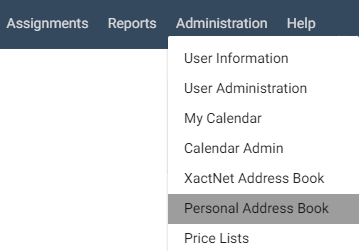
The Personal Address Book page appears.
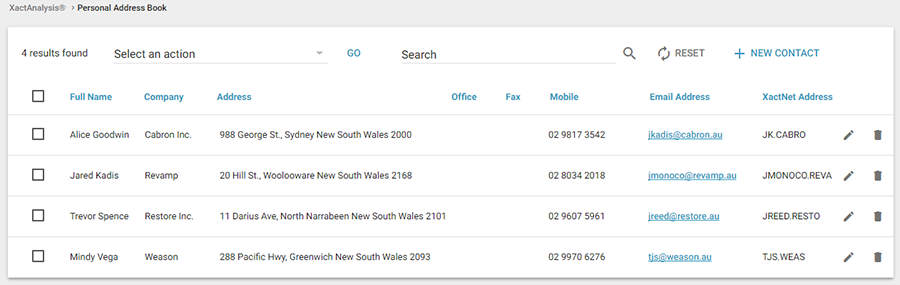
- Click a column header to sort the list by that information category.
- Click a contact’s email address to send an email to that contact.
Add contacts
- Click Create New. A row of on-screen, editable fields appear.
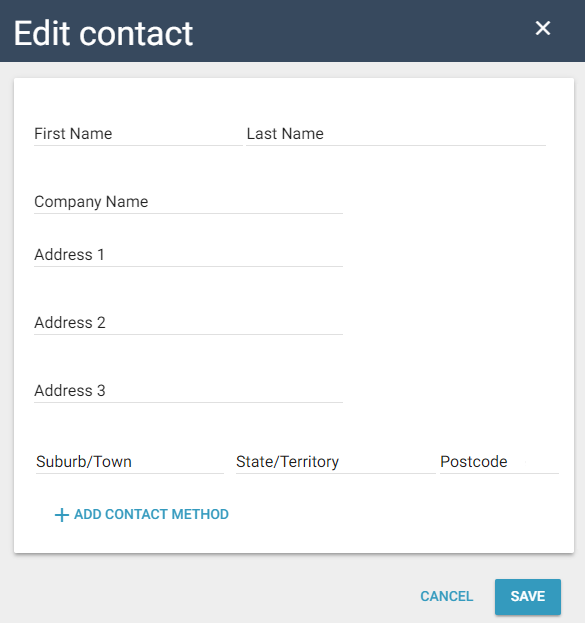
- Fill in the Full Name, Company, and Address fields.
- Click Add in the Home Phone, Office, Fax, Mobile, Email Address, or XactNet Address fields, and enter the appropriate information.
- Click Save. The new contact will appear in your address book.
Edit or delete contacts
- To edit a contact, click the contact name or contact row. The contact’s information appears in on-screen, editable fields. Change the contact information as needed and click Save. See Add contacts for instruction.
- To delete a contact, click Delete next to the contact you want removed. A confirmation dialogue box appears. Click OK. The contact is removed from your personal address book.
- To delete multiple contacts, select the check boxes for the contacts you want to delete. Click Delete Selected Contact(s). A confirmation dialogue box appears. Click OK.
Search contacts
- Type a complete or partial name, company name, address, phone number, email address, or XactNet address into the search field, and click Search. Any contacts in your address book that match the search query will be displayed.
- To reset a personal address book search, click Reset.
Export contacts to Excel
- Click Export to Excel to export your personal address book to an Excel spreadsheet. XactAnalysis will generate an .xls file with your contact data for download.
Import contacts from Excel
- Click Import from Excel. The option to Browse, Upload, or Cancel appears.

- Click Browse to search for and select an .xls or .xlsx file.Depending on your browser, The Browse button may be labeled slightly different.
- Click Upload. The new contacts appear in your address book.
Excel Formatting Requirements
The Excel worksheet must meet the following requirements:
- Use the .xls or .xlsx file format.
- Use the prescribed column headings in the following order, with no blank columns between any other columns:
- First Name
- Last Name
- Company
- Address 1
- Address 2
- City
- Country
- Postcode
- Home
- Office
- Fax
- Mobile
- Email Address
- XactNet Address
- Separate multiple phone numbers, email addresses, or XactNet addresses with a semi-colon. Spaces are optional. For example, 07006594569;07006594560 or jane.smith@email.com; jsmith@company.com.
- Use an “x” to indicate phone number extensions. For example, 02079460551x3452.
