Getting Started
 Updated
by
Arianne G.
Updated
by
Arianne G.
XactAnalysis Quality Review (QR) is a secure online management tool that enables you to set up reinspection queue rules, assign reinspectors, and complete reinspections. XactAnalysis QR also includes many XactAnalysis features, such as assigning and tracking assignments, viewing completed estimate information, creating real-time management reports, and setting up and managing administrative elements.
Assignment Workflow Overview
Below is an overview of a typical XactAnalysis QR assignment workflow. Click a step in the workflow to see more information about that step.
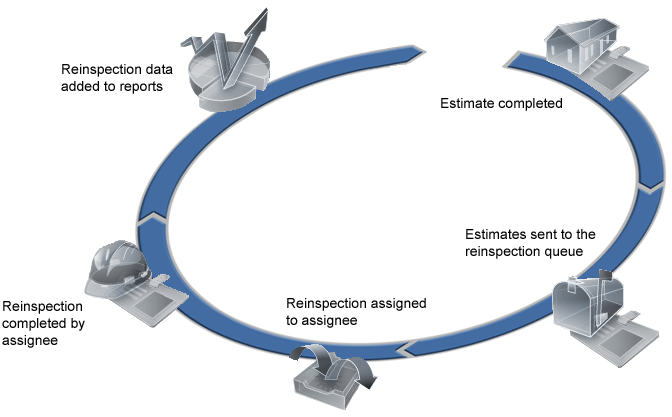
Estimate completed
Adjusters/contractors complete an assignment and return it to XactAnalysis.
Estimates sent to the reinspection queue
Completed estimates are sent to the reinspection queue automatically if they meet predetermined rules. They can also be sent manually from Assignment Detail.
Reinspection Assigned
Administrators assign reinspections from the reinspection queue to reinspectors.
Reinspection completed by assignee
Reinspectors accept, complete, and return the reinspection to XactAnalysis QR.
Reinspection data added to reports
XactAnalysis QR provides detailed reports that cover a wide selection of information ranging from the average cost of roofing materials in your company’s estimates to the results of reinspections by category.
XactAnalysis Quality Review Features
Read the following information to learn more about XactAnalysis QR features.
How to organise your reinspections
Use the Reinspection Queue as a holding area for all assignments designated for reinspection. It is used by administrators and reinspectors differently. Administrators set up rules to add estimates to the queue and assign reinspectors to estimates. Reinspectors accept reinspections and complete them in XactAnalysis QR or Xactimate®.
How to set up assignment notifications (personal and program rules)
Use Personal Rules to set up notifications that are triggered when specific events occur. You can instruct XactAnalysis QR to notify you when a reinspection is assigned, accepted, rejected, or completed. You can also use Personal Rules for a variety of other assignment-oriented notifications. For example, you could set up rules to notify you when an estimate has a line item price deviation, exceeds a certain value, or is marked File Closed. Some personal rules deal with managementinformation reports and industry trend reports. These rules notify you when certain reports are cached and ready for use.
Use Program Rules to instruct XactAnalysis QR to perform a number of actions when a set time period between two events is exceeded. These actions include notifying yourself or others, removing the assignment from the reinspection queue, and cancelling the assignment. For example, you could set up a rule to remove the assignment from the reinspection queue and notify you when the time between a reinspection's accepted date and completed date exceeds five days.
How to view real-time claims data
View real-time claims data using M.I. (Management Information). These reports cover a wide selection of information. For example, you can compare onsite reinspections with desk reinspections, evaluate the effectiveness of question categories in the Claim Review form, or quickly view the number and value of overwrites and underwrites reported during the claim review process for each price list category. These reports also allow you to monitor the work performed by assessors/builders and employees, the flow of estimates in specific areas, and trends in materials usage and cost. You can even compare your company’s data to industry competitors with a number of reports.
Industry Trend Reports display information about material and labour costs across the entire industry. These graphical reports are regularly updated with researched pricing data to give you an accurate and current outlook on trends.
How to manage staff
Use User Administration to add users and edit their user properties, data set or hierarchy rights, organisation rights, application rights, and company-specific rights.
How to access XactAnalysis help
Xactware offers several XactAnalysis help resources.
Interactive User's Guide
Use the Table of Contents and Search tabs in the left pane of this window (the Interactive User's Guide) to access help topics and training videos about specific XactAnalysis QR features. To access the guide later, select Interactive User's Guide from the Help menu. The guide will appear with information about the specific page you are viewing.
Xactware eService Centre
This portal offers a number of XactAnalysis QR product tips as well as live chat support.
Xactware Training
Xactware offers a variety of training resources for novice to advanced users.
For more information, visit Xactware's web site, www.xactware.com.