Classic Assignment Queue
 Updated
by
Arianne G.
Updated
by
Arianne G.
The Assignment Queue displays all of your unassigned and in-progress assignments on an interactive map. It allows you to filter the assignments displayed on the map and assign them to qualified adjusters and contractors. It also allows you to easily view workload information for all of your current assignees.
The images in this document are generic, and your company’s interface may vary.
Related: FAQ > Assignment Questions, Referral Assignment, Search, Personal Rules, Assignment Detail
Access Assignment Queue
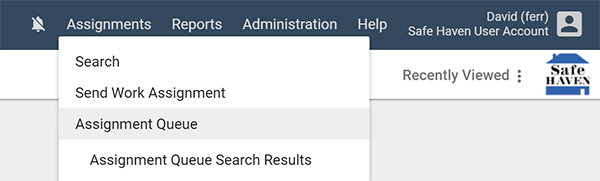
Select Assignment Queue from the Assignments menu.
Filter the queue
The filters across the top of the map allow you to easily locate specific types of assignments. When you select an option from each of the filters, the map automatically updates to only display assignments that meet your criteria.
Insurer Group
Only display assignments from specific insurers.
Business Unit
Only display assignments associated with specified business units in your company.
Peril
Only display assignments with specified perils.
Date
Only display assignments that entered a specified status within a specified date range. After you click the menu, you can select date ranges with the date picker, or you can select one of the preset date ranges from the provided list. You can click Add Date Filter to filter by additional statuses and date ranges.
CAT Code
Only display assignments with a specific CAT code. Alternatively, you can select the CAT check box to only display assignments with CAT codes or the Non-CAT check box to only display assignments without CAT codes.
Assignment Type
Only display assignments with specified assignment types.
Job Type
Only display assignments with specified job types.
Appointment
Only display assignments with or without appointments scheduled.
Attention Needed
Only display assignments that are marked as Attention Needed.
Map features
The Assignment Queue map uses Google Maps to display the location of every assignment that is currently in progress (coloured shapes) or unassigned (red location markers).
Markers
See the list below the image to identify each of the markers used in the map.
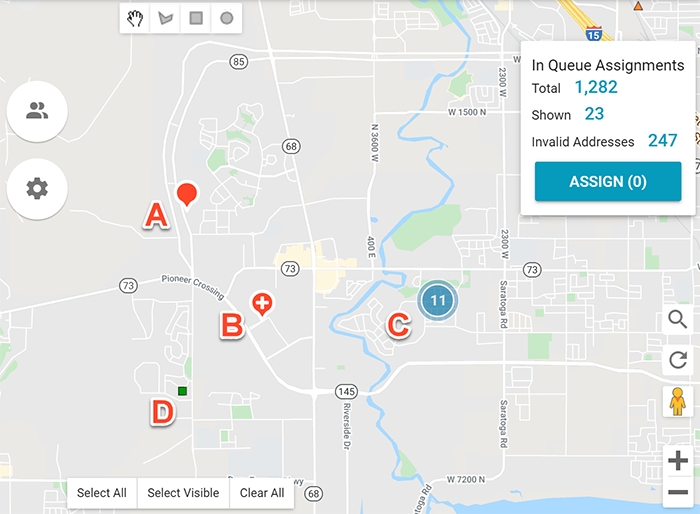
A - This marker indicates the location of a single assignment. You can click the marker to select it, or you can hover over it to view the assignment's claim reference and peril.
B - This marker indicates multiple assignments at a location. You can click the marker to select all of the assignments, or you can hover over it to select individual assignments.
C - Blue circles represent clusters of assignments in an area. The number of assignments is displayed in the circle. Click the circle to zoom in and view the individual assignments and any additional clusters.
D - Coloured geometric shapes indicate assignments that are assigned and in progress. You can hover over it to view the assignee's current workload information.
Navigation tools
The tools in the bottom-right corner allow you quickly navigate the map.
- You can click the magnifying glass button to quickly zoom in on a specified country or postcode.
- You can click the plus and minus buttons to zoom in and out on the map. You can also use your mouse wheel or touch pad.
- You can click the pegman button and drag it to a location on the map to view actual photo imagery of the location.
- You can click the reset button to reset the map to its default zoomed-out view.
Selection tools
To select individual assignments, simply click their markers. The map also provides time-saving tools that allow you to select multiple assignments at once.
- Select the hand tool at the top of the map to drag the visible area of the map in any direction.
- Select the polygon tool at the top of the map to draw custom shapes around the markers you want to select.
- Select the rectangle tool at the top of the map to draw rectangles around the markers you want to select.
- Select the circle tool at the top of the map to draw a circle around the markers you want to select.
- Click Select All at the bottom of the map to select all of the assignments on the map.
- Click Select Visible at the bottom of the map to select all of the assignments in the visible area of the map.
- Click Clear All at the bottom of the map to deselect all assignments.
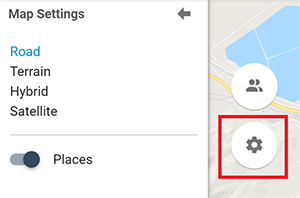
Map Settings
The map settings button on the left side of the map allows you to change the appearance of the map. It also allows you to enable or disable the markers for local places and landmarks.
View assignee workload and capacity
The Assignment Queue allows you to quickly view the workload and capacity information for assignees.
To view information for all of the assignees with assignments in the visible area of the map, click the In Progress Assignees button on the left side of the map. This opens the In Progress Assignees drawer.
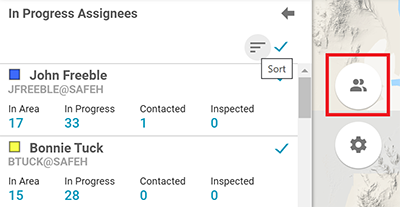
- The coloured shapes next to each assignee are used to mark their assignments on the map.
- You can click the sort icon at the top of the drawer to sort the assignee list by specified attributes.
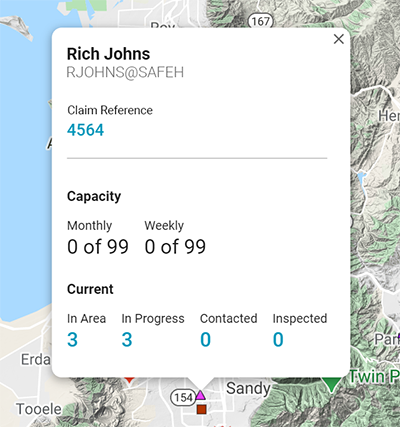
- Each assignee card lists the number of assignments the assignee has that are in the area, that are in progress, that are marked as contacted, and that are marked as inspected. You can click any of these numbers to view the assignments in Search.
- You can click the check mark for each assignment to hide it on the map. You can also click the check mark at the top of the drawer to hide all in-progress assignments on the map.
You can also view assignee information when you hover over an in-progress assignment on the map. The info window that appears displays the same information as the In Progress Assignees drawer, but also includes a Capacity section that compares the assignee's current number of assignments to their specified maximum monthly and weekly capacities.
Assign from Assignment Queue
The Assignment Queue map displays assignments in your queue within 180 days of receipt. Assignments with incomplete addresses don't appear on the map.
Select assignments
- Double-click on the map or use the zoom buttons on the right side of the map to zoom in.
- Locate the assignments you want to assign on the map.
- Select the assignments. You can click individual markers, or you can select one of the drawing tools at the top of the map and click and drag over a group of markers. Markers turn blue when they are selected.
- Click Assign in the In Queue Assignments box. The Assign dialogue box appears.
Or
- Click the Shown number link in the In Queue Assignments box. The assignments are listed in Search.
- Select the check boxes for the assignments you want to assign.
- Select Assign from the Select an Action menu. The Assign dialogue box appears.
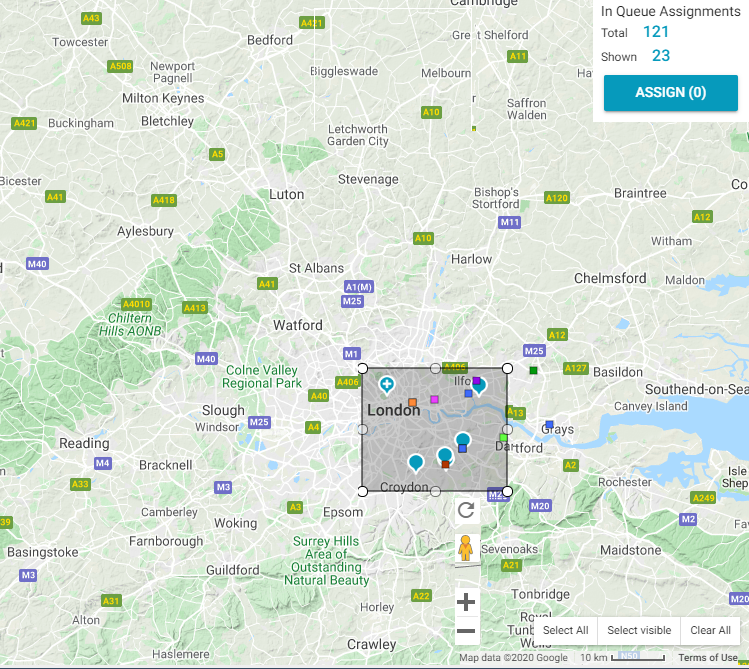
The Assign dialogue box allows you to assign the assignments to an adjuster/contractor or to a different insurer.
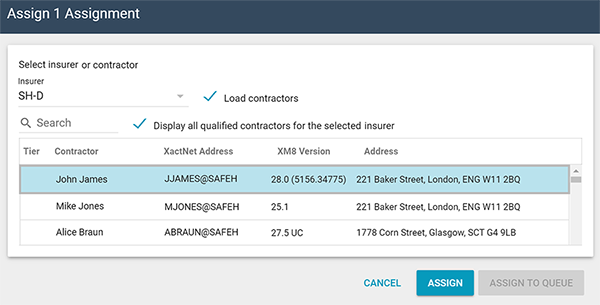
Assign an adjuster/contractor
- Select an insurer from the Insurer menu.
- Click the Load adjusters or Load contractors check box. A list appears with all of the qualified adjusters/contractors for that insurer.
- Type a name, XactNet address, Xactimate version, or address in the Search field to automatically filter the list by your criteria.
- Click a name in the list.
- Click Assign.
Assign an insurer
- Select an insurer from the Insurer menu.
- Click Assign to Queue. The assignments are moved to the Assignment Queue of the selected insurer.