Personal Rule Notifications
 Updated
by
Arianne G.
Updated
by
Arianne G.
- Access Personal Rules
- Add a personal rule
- Edit a personal rule
- Duplicate a personal rule
- Delete a personal rule
- Elapsed Time Rules
- Category and Event definitions
- Assignment Tracking
- Action Item Created
- Appointment Date
- Assigned from Queue
- Assignee Notified
- Assignment Cancelled
- Assignment Delivered
- Assignment Documents Received
- Assignment Initial Reviewed
- Assignment Initial Reviewed with Exceptions
- Assignment Received
- Assignment Rejected
- Assignment Reviewed
- Assignment Reviewed With Exceptions
- Assignment is Client Approved
- Assignment is Client Rejected
- Assignment is QA Approved
- Assignment is QA Rejected
- Attention Needed
- Claim Rep Notified
- Claim # Changed
- Claim Search Report Available
- Client Billed
- Corrected Estimate Uploaded
- Corrected Estimate Uploaded (include reassignments/referrals)
- Corrected Task List Uploaded
- Customer Contacted
- Delayed
- Desk Adjuster Reassigned
- Desk Adjuster Removed
- Estimate has Copied Items
- Estimate with Depreciation
- Estimate with No Depreciation
- Estimate with No Overhead & Profit
- Estimate with No Photos
- Estimate with No Sketch
- Estimate with No Tax
- Estimate with Overhead & Profit
- Estimate with Sketch
- File Closed
- File Reopened
- First Report Uploaded
- Image Uploaded to Estimate
- Image Uploaded without Description
- Job Completed
- Job Started
- New Assignment in Queue
- Note Added to Assignment
- Original Estimate Uploaded
- Photo Sheet Report Uploaded
- Planned Inspection Date
- Previous Loss Info Available
- Project Expected Over 30 Working Days
- Project Expected Over 500 Person Days
- Reassigned
- Removed From Estimate Review Queue
- Reserve Amount
- Reviewer Assigned
- Roof Measurement Analysis Completed
- Roof Measurement Analysis Requested
- Site Inspected
- Target Completion Date Updated
- Target Start Date Updated
- Underwriting Checklist Report Uploaded
- Underwriting Checklist Exception Occurred
- Vendor Document Uploaded
- Verisk Climate Report Requested
- Video Collaboration Added
- Work Not Proceeding
- XA or XASP Document Uploaded
- Geomni™ Property Received
- Changes to Price List Items
- Any rule in this group
- Line Item Price Deviation
- Percent of Items with All Changed
- Percent of Items with Description & Unit
- Percent of Items with Description Changed
- Percent of Items with No Change
- Percent of Items with Price & Description
- Percent of Items with Price & Unit
- Percent of Items with Price Changed
- Percent of Items with Unit Changed
- Contents Tracking
- Estimate Depreciation Options
- Depreciation applied to Material
- Depreciation applied to Non-Material
- Depreciation applied to O&P
- Depreciation applied to Removal
- Depreciation applied to Sales Tax
- Depreciation not applied to Material
- Depreciation not applied to Non-Material
- Depreciation not applied to O&P
- Depreciation not applied to Removal
- Depreciation not applied to Sales Tax
- Estimate Scope Overlap and Item Inclusion
- Estimate Value
- Labour Efficiency
- Labour Minimums
- Management Reports
- Price List Item Usage
- Price List Items by Quality
- Reinspections
- Assignment Tracking
The Personal Rules module allows you to set up notifications to inform you when events occur within a specified data set and category. You can instruct XactAnalysis® Quality Review (QR) to notify you when assignments’ statuses change, estimate value thresholds are surpassed, certain items are included in estimates, and a variety of other events. The Personal Rules module helps you monitor service provider activity as well as regional and organisational estimate anomalies and trends.
When working with personal rules, it’s important to remember that the assignor is the creator of the assignment (in most cases, the insurer). The assignee is the recipient of the assignment (the service provider).
The screen shots in this document are generic, and your company’s interface may vary.
Related: Program Rules, Notification Centre
Access Personal Rules
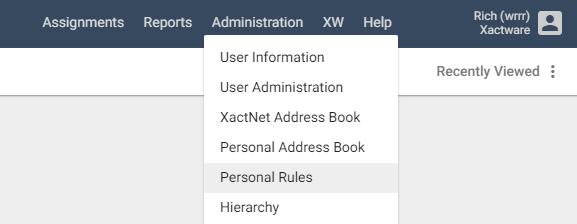
- Select Personal Rules from the Administration menu.
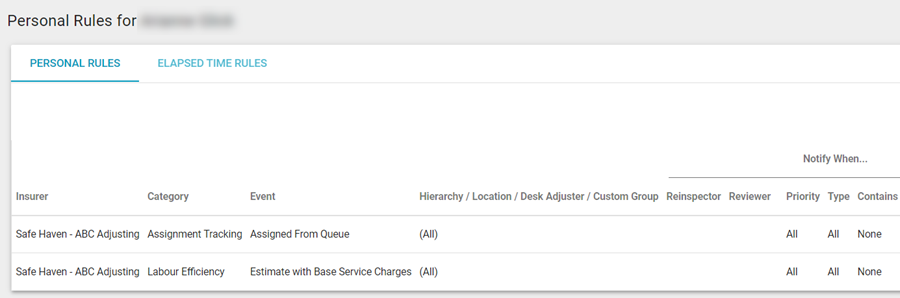
- You will see the Personal Rules page.
Add a personal rule
- On the Personal Rules page, select Add New Rule. The Add Personal Rule dialogue box appears.
- If the rule is only for an individual, select the Personal Rule radio button. If you want to apply the rule for a group of people, select the Group Rule radio button and select the group name from the Select a Group menu. Groups can be created in Custom Groups.
- Select how you would like to receive notifications: via email or within XactAnalysis.
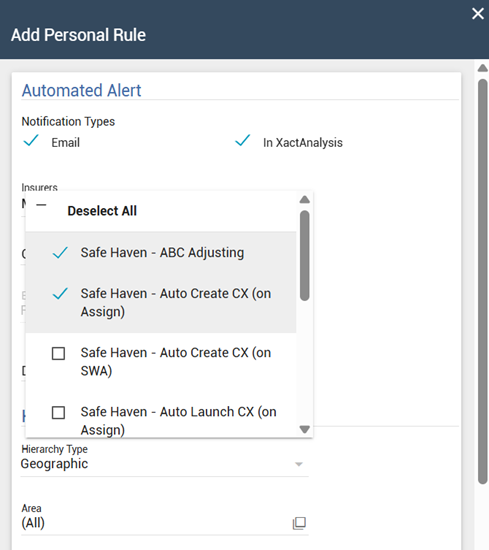
- Select the Insurers menu to select the insurer(s) in which you want the personal rule applied.
- Open the Category menu to select the notification category. Options include the following:
- Assignment Tracking
- Changes to Price List Items
- Contents Tracking
- Contractor Capacity
- Estimate Scope Overlap and Item Inclusion
- Estimate Value
- Labour Minimums
- Management Reports
- Price List Item Usage
- Price List Item by Quality
- Reinspections
- Open the Event menu to select the event for which you want notification. The list that appears is dependent on the category you chose in the Category menu.
- After you select an event, additional fields appear below. These fields are different depending on the event you select. Complete the fields.
- Open the Hierarchy Type menu to choose one of the following notification hierarchies:
- Geographic
- If you choose Geographic, select the Area/Org Levels smart list button to set an area or organization level.
- Organisational
- If you choose Organisational, select the Area/Org Levels smart list button to set an area or organization level.
- Custom Group
- If you choose Custom Group, select the Group Name smart list button. Then, select an available custom group.
- Individual
- If you choose Individual, enter an adjuster or contractor’s name.
After you make your selection, the second field window will change to reflect the hierarchy type (Area for Geographic, Adjuster/Contractor for Individual, and Org Levels for Organisational).
- The new rule is turned on by default. If you want the rule to be turned off, select Disable rule.
- Select OK.
After you create a rule, it appears in the Personal Rules table, along with pertinent information. If a rule applies to multiple insurers, you can select the Info icon to view a list of included insurers.
Edit a personal rule
To edit a personal rule, open the drop-down menu at the end of the rule’s row. It looks like three dots stacked on top of each other. From within the drop-down menu, select Edit rule.
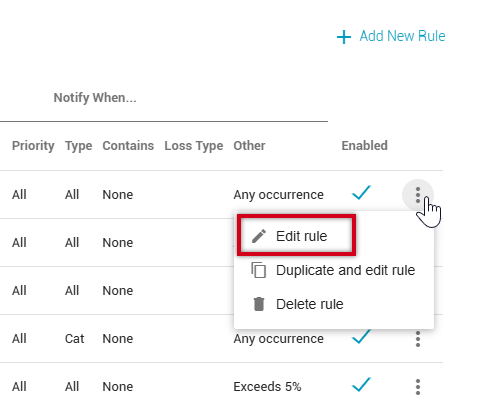
The Edit Personal Rule dialog box appears. Make your edits and select Save and close when you are finished.
Duplicate a personal rule
Duplicating a personal rule allows you to copy a new or existing rule and adjust it to suit your needs.
- Find the rule you wish to duplicate and open the drop-down menu at the end of the rule’s row. It looks like three dots stacked on top of each other.
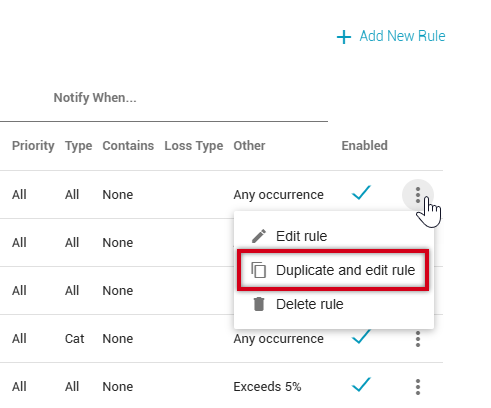
- Select Duplicate and edit rule. The Edit Personal Rule dialog box appears.
- Make any changes needed to the duplicated rule, including changing the selected insurer(s).
- Once you are finished making your changes to the duplicated rule, click Save and close.
Delete a personal rule
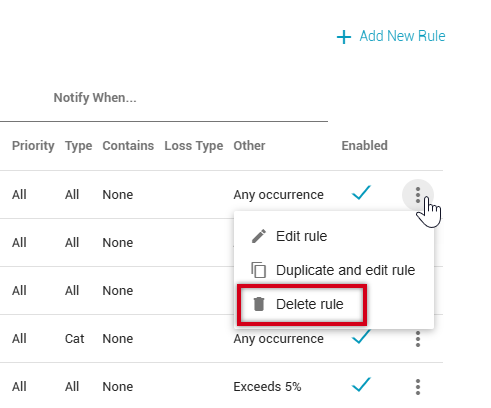
To delete a personal rule, open the drop-down menu at the end of the rule’s row. It looks like three dots stacked on top of each other. From the drop-down menu, select Delete rule.
Elapsed Time Rules
Elapsed Time Rules are similar to Personal Rules but are better-suited to a time-sensitive workflow. Rather than simply notifying you when an event occurs, elapsed time rules notify you when the set time period between two events (when a status is achieved) is exceeded. See Statuses for event definitions.
Elapsed Time Rules is located on the Personal Rules page, directly below Personal Rules. Elapsed Time Rules are added, edited, and deleted in a similar way to Personal Rules.
Category and Event definitions
Most of the categories and events that trigger a personal rule are self-explanatory, but for your convenience, definitions for each of these are provided in this appendix.
Assignment Tracking
The events in the Assignment Tracking category are used to notify you about changes in an assignment, including statuses, updates, inclusions, or exclusions.
Action Item Created
This event is used to notify you when an action item is created.
An Action Item is a task created in XactAnalysis by an assignor (anyone with the Edit Action Items application right) that needs to be accomplished or followed up by an adjuster/contractor.
Appointment Date
This event is used to notify you when a date has been entered in the Appointment Date field.
Assigned from Queue
This event is used to notify you when an assignor (anyone with the Send Work Assignments application right) assigns an assignment from the Assignment Queue to an adjuster/contractor.
Assignee Notified
This event is used to notify you when the assignee has received notification of a new assignment.
Assignment Cancelled
This event is used to notify you when an assignment is cancelled. Only XactAnalysis users with the Cancel Assignments application right can cancel assignments.
Assignment Delivered
This event is used to notify you when adjusters or contractors connect to XactAnalysis and download assignments to their Xactimate® accounts.
Assignment Documents Received
This event is used to notify you when assignment documents, such as the Estimate Audit Report or Report Rough Draft, are uploaded to XactAnalysis from an adjuster/contractor.
Assignment Initial Reviewed
For companies that use the Multiple Review Queue, this event is used to notify you when a reviewer has completed the initial review of an assignment and updated its status to Initial Review Complete.
Assignment Initial Reviewed with Exceptions
For companies that use the Multiple Review Queue, this event is used to notify you when a reviewer has completed the initial review of an assignment, but finds problems with the assignment and has updated its status to Initial Review Completed with Exceptions.
Assignment Received
This event is used to notify you when XactAnalysis receives a new assignment into the Assignment Queue or for a specific adjuster or contractor. If the assignment was sent to the Assignment Queue first, the Received date is updated when it is assigned to an adjuster or contractor. After being assigned the first time, the Received date is no longer updated (the Reassignment, Referral, or Collaboration statuses are used instead).
If this event is set up for a specific adjuster or contractor with the Hierarchy Type set as Individual, then a notification is only sent to you if an assignment is created and assigned to the specified adjusters or contractors simultaneously. If the assignment is created and sent to the assignment queue first, then no notification is sent for this event. To receive notifications for adjusters or contractors being assigned to assignments in the assignment queue, set up the Assigned From Queue personal rule.
Assignment Rejected
This event is used to notify you when adjusters or contractors reject or delete assignments sent to them.
Assignment Reviewed
This event is used to notify you when a reviewer accepts a completed assignment and updates its status to Reviewed.
Assignment Reviewed With Exceptions
This event is used to notify you when a reviewer finds problems with a completed assignment and updates its status to Reviewed with Exceptions.
Assignment is Client Approved
This event is used to notify you when an assignment is updated to Client Approved.
Assignment is Client Rejected
This event is used to notify you when an assignment is updated to Client Rejected.
Assignment is QA Approved
This event is used to notify you when quality assurance on an assignment is met and the assignment is updated to QA Approved.
Assignment is QA Rejected
This event is used to notify you when quality assurance on an assignment is not met and it is updated to QA Rejected.
Attention Needed
This event is used to notify you when an assignment needs urgent attention and its status is updated to Attention Needed. Depending on your companies preferences, an assignment may be marked as needing attention for a number of specific reason.
Claim Rep Notified
This event is used to notify you when the first assignment notification is sent to a contractor or adjuster.
Claim # Changed
This event is used to notify you when an existing claim reference is changed or when a claim reference is added to an assignment that previously had no claim reference.
Claim Search Report Available
This event is used to notify you if a claim has a Claim Search Report available.
Client Billed
This event is used to notify you when a client has been billed for the work done on an assignment, and the Client Billed workflow status has been updated accordingly.
Corrected Estimate Uploaded
This event is used to notify you when an adjuster/contractor uploads a corrected estimate.
Corrected Estimate Uploaded (include reassignments/referrals)
This event is used to notify you when an adjuster/contractor uploads a corrected estimate after the estimate has been assigned to another data set.
Corrected Task List Uploaded
This event is used to notify you when a task list for an assignment is corrected and uploaded to XactAnalysis.
Customer Contacted
This event is used to notify you when an adjuster/contractor has indicated through Xactimate that they have made contact with the customer. This can be done in XactAnalysis as well. Once an adjuster/contractor has indicated that contact has been made, this indication cannot be removed.
Delayed
This event is used to notify you when an assignment is delayed and may require additional action.
Desk Adjuster Reassigned
This event is used to notify you when an assignment is reassigned to a different desk adjuster.
Desk Adjuster Removed
This event is used to notify you when a desk adjuster is removed from an assignment.
Estimate has Copied Items
This event is used to notify you when an estimate is uploaded that has line items that were copied over from another estimate.
Estimate with Depreciation
This event is used to notify you when an adjuster/contractor uploads a completed estimate with line items that are depreciated greater than or less than a specified amount.
Estimate with No Depreciation
This event is used to notify you when an adjuster/contractor uploads a completed estimate with line items with no depreciation.
Estimate with No Overhead & Profit
This event is used to notify you when an adjuster/contractor uploads a completed estimate without overhead and profit included in the estimate total.
Estimate with No Photos
This event is used to notify you when an adjuster/contractor uploads a completed estimate without any photos included.
Estimate with No Sketch
This event is used to notify you when an adjuster/contractor uploads a completed estimate without a sketch included.
Estimate with No Tax
This event is used to notify you when an adjuster/contractor uploads a completed estimate without any tax included in the estimate total.
Estimate with Overhead & Profit
This event is used to notify you when an adjuster/contractor uploads a completed estimate with overhead and profit included in the estimate total.
Estimate with Sketch
This event is used to notify you when an adjuster/contractor uploads a completed estimate with a sketch included.
File Closed
This event is used to notify you when an assignment’s file status is updated from Open to Closed. Once this is done, the assignment can no longer be reassigned or corrected, and Xactimate users can no longer request them from the library.
File Reopened
This event is used to notify you when an assignment’s file status is updated from Closed to Reopened in order to perform additional actions.
First Report Uploaded
This event is used to notify you when the first report is uploaded to XactAnalysis from Xactimate.
Image Uploaded to Estimate
This event is used to notify you when an adjustor or contractor uploads photos or other images for an estimate.
Image Uploaded without Description
This event is used to notify you when an image is uploaded to XactAnlaysis without a description.
Job Completed
This event is used to notify you when an assignment is updated to Job Completed in XactAnalysis.
Job Started
This event is used to notify you when an assignment’s status is updated to Job Started in XactAnalysis.
New Assignment in Queue
This event is used to notify you when a new assignment (as opposed to a resubmitted assignment) enters the Assignment Queue.
Note Added to Assignment
This event is used to notify you when a note is added to an assignment by users or automatic notifications.
Original Estimate Uploaded
This event is used to notify you when an adjuster/contractor uploads an original estimate (as opposed to a resubmitted estimate).
Photo Sheet Report Uploaded
This event is used to notify you when an adjuster/contractor uploads a completed estimate with a Photo Sheet report included.
A Photo Sheet report is a special report created in Xactimate that includes all of the estimate photos in a single PDF file.
Planned Inspection Date
This event is used to notify you when a date has been entered in the Planned Inspection Date field.
Previous Loss Info Available
This event is used to notify you if a claim has previous loss info available.
Project Expected Over 30 Working Days
This event is used to notify you when an adjuster/contractor marks an assignment to expectedly take more than 30 work (excluding Saturdays and Sundays) days.
Project Expected Over 500 Person Days
This event is used to notify you when an adjuster/contractor marks an assignment to expectedly take more than 500 person (including Saturdays and Sundays) days.
Reassigned
This event is used to notify you when an assignment is reassigned to a new adjuster/contractor.
Removed From Estimate Review Queue
This event is used to notify you when an estimate is removed from the Estimate Review Queue.
Reserve Amount
This event is used to notify you when an adjuster/contractor uploads a completed assignment that includes a reserve amount greater than a specified amount.
Reviewer Assigned
This event is used to notify you when a reviewer is assigned to evaluate an completed estimate.
Roof Measurement Analysis Completed
This event is used to notify you when a Roof Measurement Analysis for an assignment is uploaded to XactAnalysis from a third-party company.
A Roof Measurement Analysis is a detailed report that describes a roof’s measurements, square footage, and other attributes.
Roof Measurement Analysis Requested
This event is used to notify you when a Roof Measurement Analysis for an assignment is requested through XactAnalysis from a third-party company.
A Roof Measurement Analysis is a detailed report that describes a roof’s measurements, square footage, and other attributes.
Site Inspected
This event is used to notify you when an adjuster/contractor updates an assignment’s status to Site Inspected after evaluating the damaged property.
Target Completion Date Updated
This event is used to notify you when an assignment's Target Completion Date status is updated.
Target Start Date Updated
This event is used to notify you when an assignment's Target Start Date status is updated.
Underwriting Checklist Report Uploaded
This event is used to notify you when an adjuster/contractor has uploaded a finished Underwriting Checklist report with a completed estimate.
The Underwriting Checklist report is an optional report in Xactimate that lists several questions concerning the final inspection of the property.
Underwriting Checklist Exception Occurred
This event is used to notify you when an Underwriting Checklist report is uploaded with Yes, No, or N/A responses entered on specific questions.
The Underwriting Checklist report is an optional report in Xactimate that lists several questions concerning the final inspection of the property.
Vendor Document Uploaded
This event is used to notify you when a third-party vendor has uploaded a document to an assignment.
Verisk Climate Report Requested
This event is used to notify you when an Verisk Climate weather data report is requested.
Video Collaboration Added
This event is used to notify you when videos, notes, or photos are added to an assignment from a video collaboration.
Work Not Proceeding
This event is used to notify you when an assignment is updated to Work Not Proceeding in XactAnalysis.
XA or XASP Document Uploaded
This event is used to notify you when a document is added to an assignment directly from XactAnalysis or XactAnalysis for Service Providers (SP).
Geomni™ Property Received
This event is used to notify you when Geomni™ Property data has been uploaded to an assignment in XactAnalysis.
Changes to Price List Items
The events in the Changes to Price List Items category are used to notify you about variations made to price list items in an estimate.
Any rule in this group
This event is used to notify you when any of the rules in the Changes to Price List Items category are triggered.
Line Item Price Deviation
This event is used to notify you when line items in an estimate deviate from the checkpoint price list by a specified percentage.
Percent of Items with All Changed
This event is used to notify you when an adjustor or contractor uploads a completed estimate in which the percent of line items that are changed is greater than or less than a specified percent.
Percent of Items with Description & Unit
This event is used to notify you when an adjuster/contractor uploads a completed estimate in which the percent of line items with description or unit changes is greater than or less than a specified percent.
Percent of Items with Description Changed
This event is used to notify you when an adjuster/contractor uploads a completed estimate in which the percent of line items with description changes is greater than or less than a specified percent.
Percent of Items with No Change
This event is used to notify you when an adjuster/contractor uploads a completed estimate in which the percent of line items with no changes is greater than or less than a specified percent.
Percent of Items with Price & Description
This event is used to notify you when an adjuster/contractor uploads a completed estimate in which the percent of line items with price or description changes is greater than or less than a specified percent.
Percent of Items with Price & Unit
This event is used to notify you when an adjuster/contractor uploads a completed estimate in which the percent of line items with price or unit changes is greater than or less than a specified percent.
Percent of Items with Price Changed
This event is used to notify you when an adjuster/contractor uploads a completed estimate in which the percent of line items with price changes is greater than or less than a specified percent.
Percent of Items with Unit Changed
This event is used to notify you when an adjuster/contractor uploads a completed estimate in which the percent of line items with unit changes is greater than or less than a specified percent.
Contents Tracking
The events in the Contents Tracking category are used to notify you of changes in Contents assignments.
ARC Overridden
This event is used to notify you when a user overrides a deferred amount in a Contents estimate.
Additional Inventory Submitted
This event is used to notify you when an inventory is submitted via Contents Collaboration after the estimate is uploaded. If an inventory is submitted before the estimate is uploaded, no notification is sent.
Contents Value
This event is used to notify you when an adjuster/contractor uploads a Contents estimate with a contents value that exceeds or is less than a specified pound value.
Estimate Depreciation Options
The events in the Estimate Depreciation Options category are used to notify you when different types of depreciation are applied in estimates.
Depreciation applied to Material
This event is used to notify you when an adjuster/contractor uploads an estimate with depreciation applied to material.
Depreciation applied to Non-Material
This event is used to notify you when an adjuster/contractor uploads an estimate with depreciation applied to non-material.
Depreciation applied to O&P
This event is used to notify you when an adjuster/contractor uploads an estimate with depreciation applied to O&P.
Depreciation applied to Removal
This event is used to notify you when an adjuster/contractor uploads an estimate with depreciation applied to removal.
Depreciation applied to Sales Tax
This event is used to notify you when an adjuster/contractor uploads an estimate with depreciation applied to sales tax.
Depreciation not applied to Material
This event is used to notify you when an adjuster/contractor uploads an estimate with depreciation not applied to material.
Depreciation not applied to Non-Material
This event is used to notify you when an adjuster/contractor uploads an estimate with depreciation not applied to non-material.
Depreciation not applied to O&P
This event is used to notify you when an adjuster/contractor uploads an estimate with depreciation not applied to O&P.
Depreciation not applied to Removal
This event is used to notify you when an adjuster/contractor uploads an estimate with depreciation not applied to removal.
Depreciation not applied to Sales Tax
This event is used to notify you when an adjuster/contractor uploads an estimate with depreciation not applied to sales tax.
Estimate Scope Overlap and Item Inclusion
Before uploading an estimate to XactAnalysis, Xactimate checks it for any inconsistencies or possible errors. The events in the Estimate Scope Overlap and Item Inclusion category are used to notify you when any of these possible inconsistencies or errors remains unresolved after the estimate is uploaded. These events vary by company. To see the algorithms associated with different personal rules in this category, see Algorithms.
Dry PatchJ Rule Broken
This event is used to notify you that a dry patchJ rule has been broken.
Mandatory Forms Rule Broken
This event is used to notify you that a mandatory forms rule has been broken.
Estimate Value
The events in the Estimate Value category are used to notify you when estimates come in above or below a specified amount.
Corrected Estimate Value
This event is used to notify you when an adjuster or contractor uploads a corrected estimate that is greater than or less than a specified amount.
Estimate Value
This event is used to notify you when an adjustor or contractor uploads an estimate that is greater than or less than a specified amount.
Labour Efficiency
The events in the Labour Efficiency category are used to create automatic notifications that relate to labour efficiency.
Estimate with Base Service Charges
This event is used to notify you when an adjuster or contractor uploads a completed estimate with base service charges included.
Labour Minimums
The events in the Labour Minimums category are used to create automatic notifications that relate to labour minimums. A labour minimum is a monetary amount an adjuster or contractor may charge for just showing up to do a job.
All Labour Minimums Disabled
This event is used to notify you when an estimate has no labour minimums enabled.
Estimate has Labour Minimum Adjustment
If the actual estimate ends up being less than the labour minimum, Xactimate adds the necessary monetary amount to increase the estimate to the labour minimum amount required by the adjuster or contractor. This is the labour minimum adjustment. This event is used to notify you when Xactimate has added a labour minimum adjustment to an estimate.
Labour Minimums Enabled
This event is used to notify you when an estimate has one or more labour minimums enabled.
New Construction Turned Off
This event is used to notify you when an estimate that uses labour minimums is uploaded to XactAnalysis without selecting the New Construction option in Xactimate.
New Construction Turned On
This event is used to notify you when an estimate that uses labour minimums is uploaded to XactAnalysis with the New Construction option selected in Xactimate.
Management Reports
The events in the Management Reports category are used to notify you when the most common management information reports are updated and cached for quick viewing in XactAnalysis.
Depreciation Usage
This event is used to notify you when the Depreciation Usage management information report is updated and cached.
Inclusion Issues
This event is used to notify you when the Inclusion Issues management information report is updated and cached.
Overhead and Profit
This event is used to notify you when the Overhead and Profit management information report is updated and cached.
Price Deviations
This event is used to notify you when the Price Deviations management information report is updated and cached.
Scoping Overlap
This event is used to notify you when the Scoping Overlap management information report is updated and cached.
Price List Item Usage
Not in Price List
This event is used to notify you when an adjuster/contractor uploads a completed estimate with a specified percent of line items that are miscellaneous and don’t exist in the checkpoint price list.
USR MISC
This event is used to notify you when an adjuster/contractor uploads an estimate with a USR MISC (user miscellaneous) item and that item exceeds or is less than a specified percentage of the estimate total.
Price List Items by Quality
The events in the Price List Items by Quality category are used to notify you when the percent of items of certain qualities in an estimate exceeds a specified percent.
Any rule in this group
This event is used to notify you when any of the events in the Price List Items by Quality category are triggered.
Percent of Average Quality Items
This event is used to notify you when an adjuster/contractor uploads a completed estimate in which the percent of items that are average quality exceeds a specified percent.
Percent of High Quality Items
This event is used to notify you when an adjuster/contractor uploads a completed estimate in which the percent of items that are high quality exceeds a specified percent.
Percent of Low Quality Items
This event is used to notify you when an adjuster/contractor uploads a completed estimate in which the percent of items that are low quality exceeds a specified percent.
Percent of Premium Quality Items
This event is used to notify you when an adjuster/contractor uploads a completed estimate in which the percent of items that are premium quality exceeds a specified percent.
Reinspections
The Reinspections category and its events only appear when using XactAnalysis QR. These rules are used to notify you when a reinspection assignment changes status.
Reinspection Accepted
This event is used to notify you when a reinspection assignment is accepted by a reinspector.
Reinspection Assigned
This event is used to notify you when a reinspection assignment is assigned to a reinspector.
Reinspection Completed
This event is used to notify you when a reinspection assignment is updated to completed.
Reinspection Rejected
This event is used to notify you when a reinspection assignment is rejected by a reinspector.