Assignment Volume Report
 Updated
by
Arianne G.
Updated
by
Arianne G.
The Assignment Volume report enables you to view and sort your company’s assignments. You can filter the assignments by geographic area, peril, data set, estimate total, catastrophe status, assignment status, and date range. The report also displays a catastrophe table with current catastrophe information based on date range, data set, estimate value, peril, and state. The data in both the table and map can be based off of the same filters, or the table and map can be filtered independently of each other. You can view all current catastrophes or drill down to one specific catastrophe to see additional detail.The screen shots in this document are generic, and your company’s interface may vary.
Related: Search, M.I. (Management Information
Access the Assignment Volume report
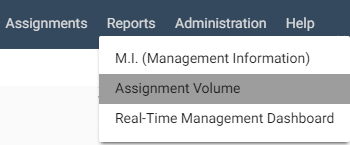
- Select Assignment Volume from the Reports menu. This takes you to the Assignment Volume page.
Apply Assignment Filters and Map Settings
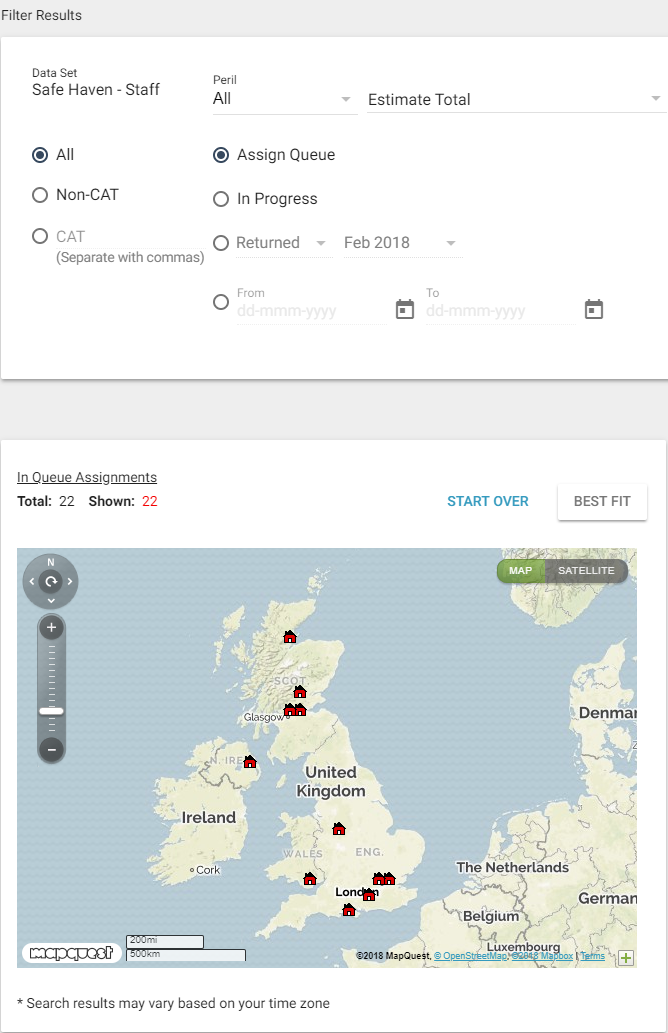
In the Assignment Volume report, you will see a map plotting each assignment’s location.
- In the Assignment Map Filter area, you can filter the assignments by sender, peril, data set, estimate total, CAT and non-CAT, date range, or workflow status.
- You can drill down to a specific postal code area in Map Settings.
- Click Submit to apply filters and settings.
- Double click on the map or use the zoom buttons on the left side of the map to zoom in.
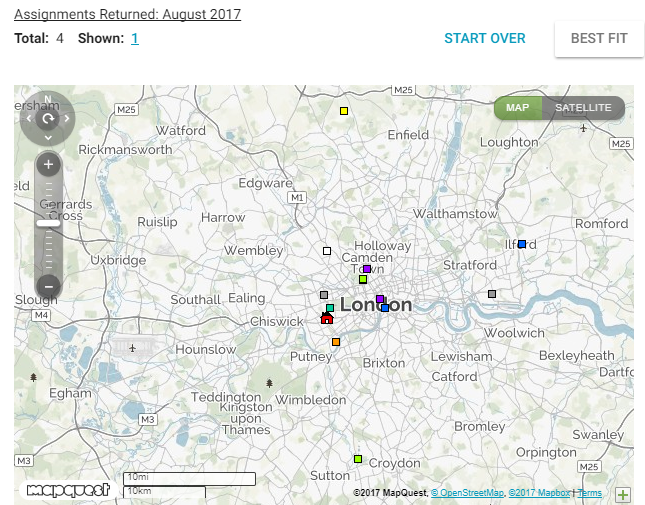
When you zoom in, the In Progress Assignments table appears to the right of the map, and adjuster/contractor locations are displayed as coloured boxes on the map. The coloured boxes correspond to the boxes in the In Progress Assignments table.
Use the In Progress Assignments table
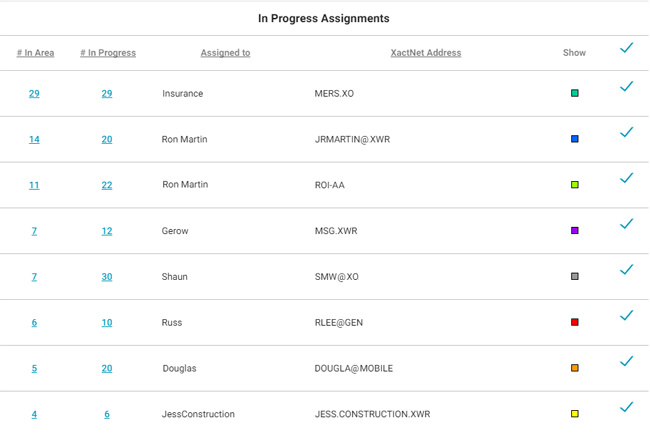
The In Progress Assignments table shows data for adjusters/contractors with in-progress assignments in the viewable geographic area, including each adjuster/contractor’s XactNet® address, number of total assignments, and number of in-progress assignments.
Each adjuster/contractor is assigned a coloured box that corresponds to the coloured boxes on the map that shows where each adjuster/contractor’s assignments are located. This information can help you visualise adjuster/contractor workload in a given area.
- Clear the check boxes in the table to remove the coloured boxes from the map.
Access Assignment Volume results in Search
- Zoom into an area on the map until the Shown number above the map becomes a hyperlink.
- Click the Shown number hyperlink.
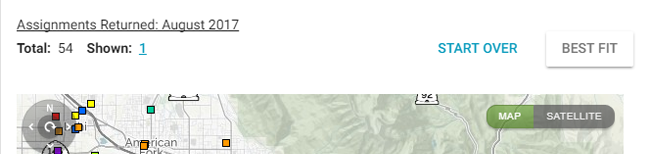
The Assignment Volume results appear in Search. See Search for more information.