Classic Claim Review Queue
 Updated
by
Arianne G.
Updated
by
Arianne G.
Sometimes estimates need additional review after an initial estimate review or even after a reinspection. Queue administrators can place these estimates in the Claim Review Queue and then assign them to reviewers. Reviewers can then access the queue to accept and complete the reviews.
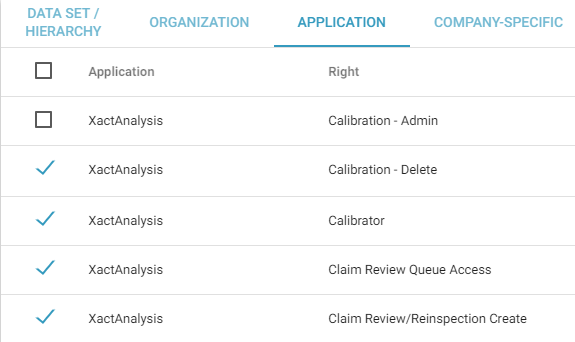
Claim Review Queue right
Before accessing and editing the Claim Review Queue, users must first have the proper application right activated.
- In User Administration, select a User Name from the list to go the Edit User page.
- Click the Application tab and select the check box for Claim Review Queue Access.
- Click Save.
Access the queue
Select Claim Review Queue from the Assignments menu. To see only claim reviews assigned to you, select My Claim Review Queue.
In the queue, you may sort columns alphabetically by selecting a column title. To reset the queue after sorting columns or using the queue filter, click reset in the top left corner.
Add an estimate to the queue
- Go to the Assignment Detail page.
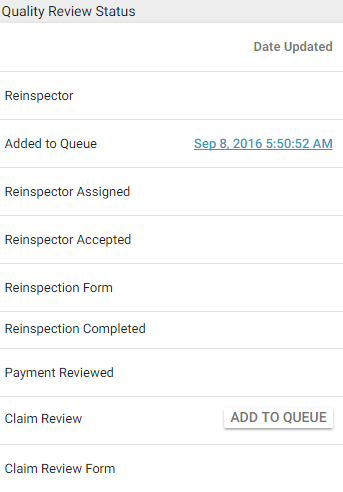
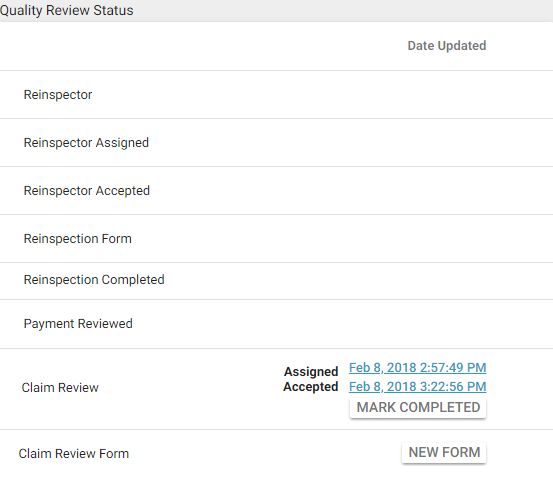
- In the Quality Review Status section, on the Claim Review line, click Add to Queue.
Assign a claim review
- Select Claim Review Queue from the Assignments menu.
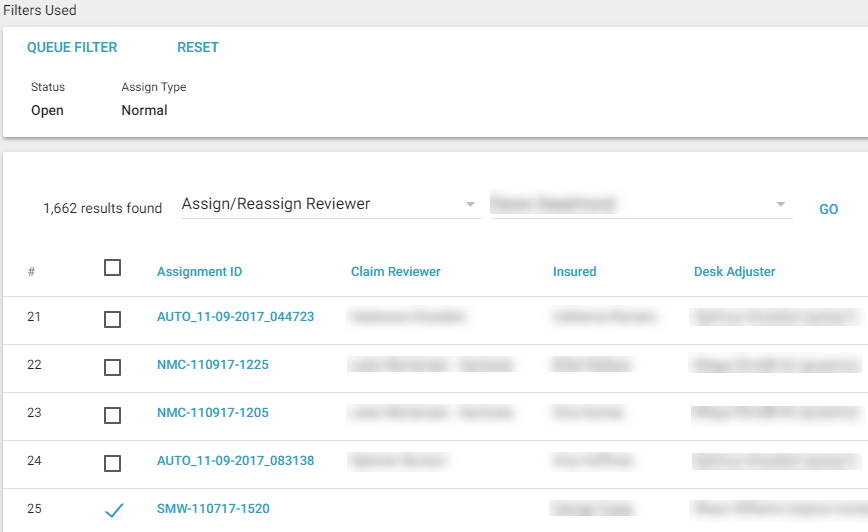
- Select the check boxes for the claim reviews you want to assign.
- Select Assign/Reassign Reviewer from the Select an Action drop-down menu. The Select a Claim Reviewer drop-down menu appears.
- Choose the reviewer from the Select a Claim Reviewer drop-down menu.
- Click Go.
Accept and complete a review
When a claim review has been assigned to you, it appears in your claim review queue.
- Select My Claim Review Queue from the Assignments menu.
- Select the check boxes for the claim reviews you want to accept.
- Select Accept Claim Reviews from the Select an Action drop-down menu.
- Click Go. The Update Status dialogue box appears.
- Click Update Status.
When you have accepted a claim review, you can complete the claim review process.
- In My Claim Review Queue, click on the accepted assignment.
- On the Assignment Detail page, scroll down to the Quality Review Status section.
- On the Claim Review Form line, click New Form. The Reinspection Evaluation Form appears.
- Enter the appropriate information and answer the questions on the form. Click Save and Exit to close the form, or Save and Print to print a copy for your records.
Mark claim review Complete and view in Documents tab
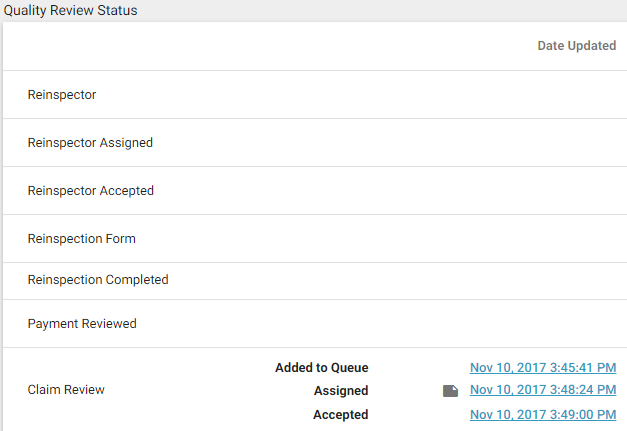
Select Mark Completed in the Details tab. The update status dialogue box appears. Click Update Status. A time stamp appears by the Claim Review status.
The following events also occur:
- The reports are populated with the information. See Quality Review Reports for more information.
- The Claim Review Form is saved in the Documents tab.
- If multiple claim review forms have been completed, they are all saved to the Documents tab.
- The claim review is removed from your Claim Review Queue.
- Personal and Program Rules may be triggered.
The Documents, Photos, and Sketches tabs on the Assignment Detail page show all documents, photos, and sketches that were uploaded with the claim review.