Reinspection Queue
 Updated
by
Mara K
Updated
by
Mara K
The Reinspection Queue is a module in XactAnalysis® Quality Review (QR) that places all designated assignments into a list for reinspection. The first half of this guide explains how to access and use the general features of the reinspection queue. The last half explains the workflows for two types of users: supervisors/administrators and reinspectors.
Reinspections can be completed in XactAnalysis QR or in Xactimate® based on your company’s settings; the workflows for both methods are explained in this guide. Your company’s workflow may differ from what is shown here.
The screenshots in this document are generic, and your company’s interface may vary.
Related: Reinspection Statuses, Reinspection Form Scoring, Search, Queue Admin
Access Reinspection Queue
There are two ways to access the Reinspection Queue.
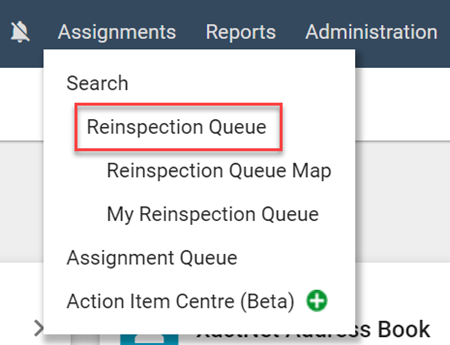
- Select Reinspection Queue from the Assignments menu. To see only reinspections assigned to you, select My Reinspection Queue.
- On the Search page, select Reinspection Queue from the Queue Type dropdown menu. To see only reinspections assigned to you, select My Reinspection Queue.
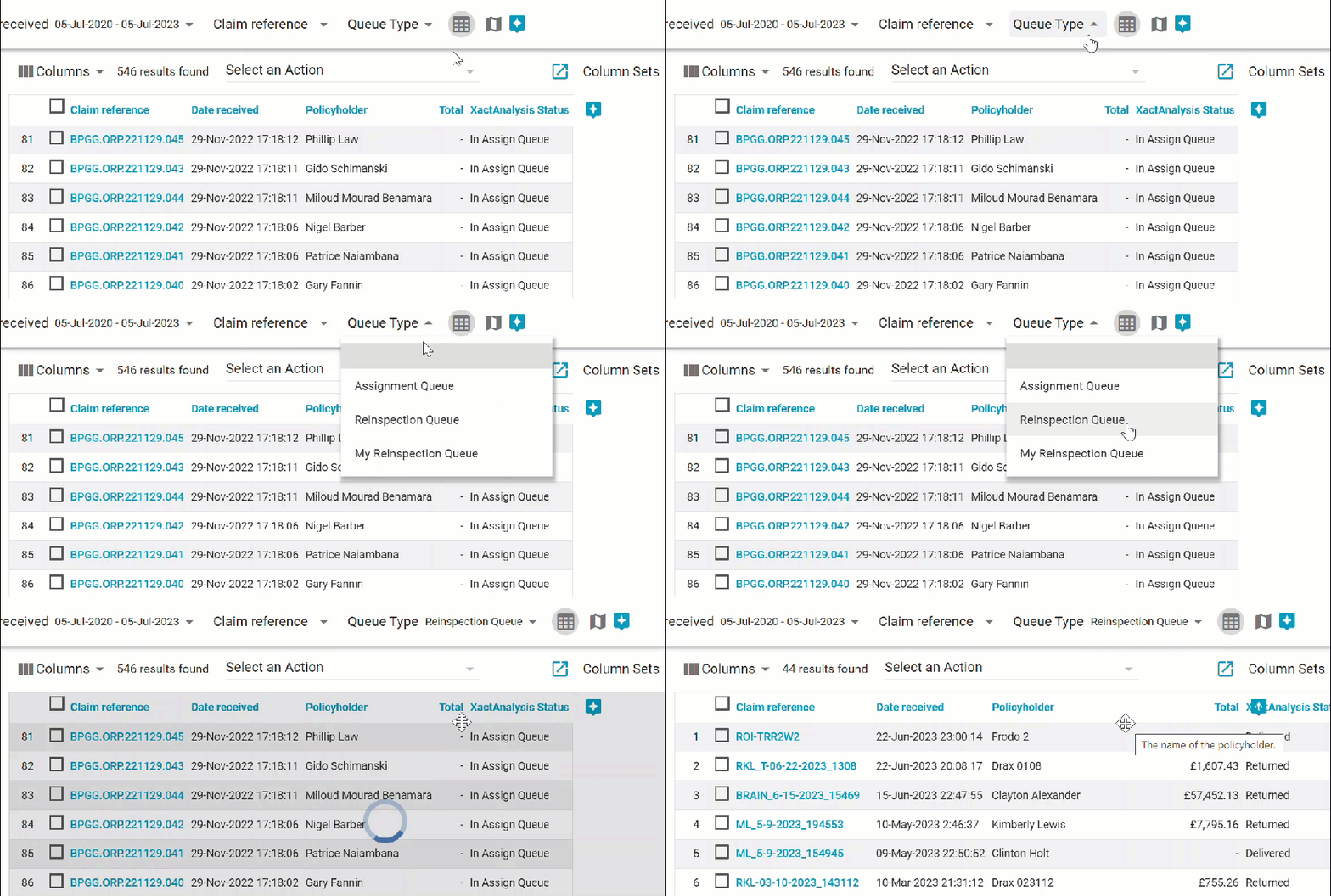
The Reinspection Queue displays a list of estimates. Users with Reinspector rights are able to see only reinspections assigned to them. Users with Reinspector Admin rights can see all reinspections, regardless of the assigned reviewer.
Use Reinspection Queue Map
The Reinspection Queue Map displays the geographic locations of reinspections in the Reinspection Queue and allows administrators to select reinspections and assign them to a reinspector.
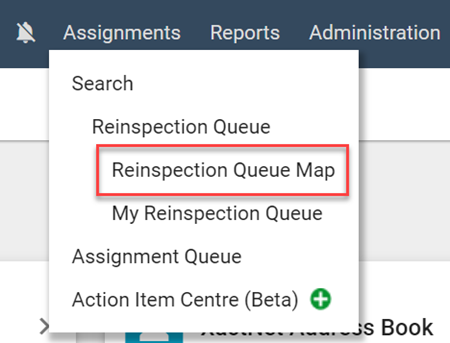
- Select Reinspection Queue Map in the Assignments menu to open the map.
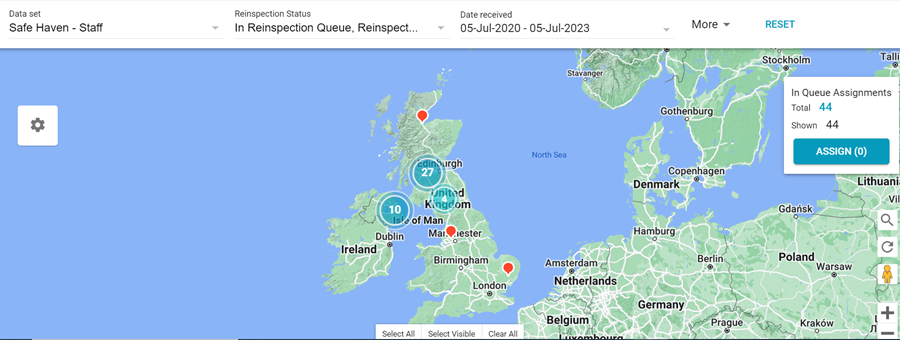
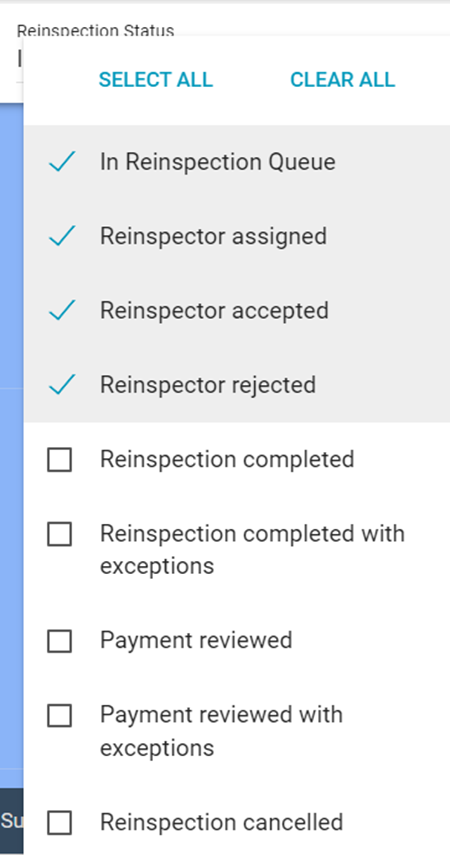
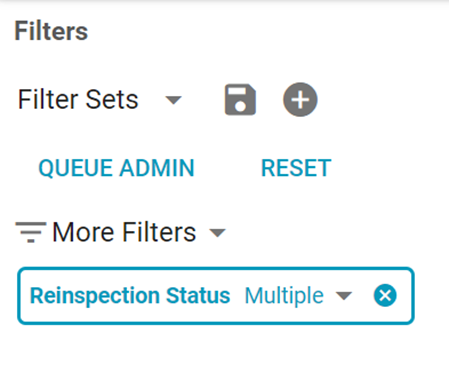
You can filter the map by Reinspection Status directly from the filter ribbon.
The More menu in the filter ribbon allows you to apply additional filters to the map. The menu includes the following filters:
- Office levels
- Country/Region
- Claim reference
- Recipient
- Postcode
- Peril
- Reinspection queue rule
- Reinspector
- Test assignments
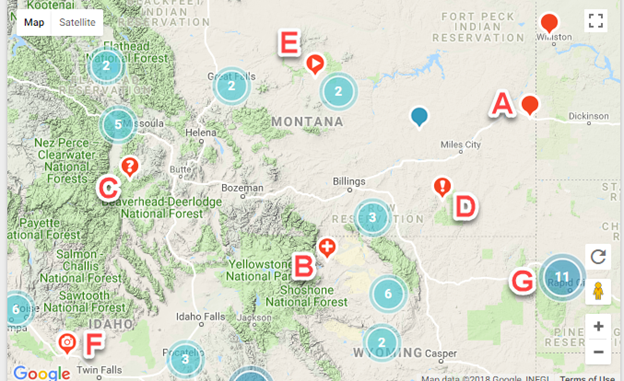
A - This marker represents a single assignment. Click the marker to select the assignment. Selected markers turn blue. Administrators can right-click the marker to open an info window.
B - This marker represents multiple assignments at a location. Click the marker to select all the assignments. Right-click to open an info window from which you can select individual assignments.
C - This marker indicates that the assignment address was not found. The marker's placement is near its expected location.
D - This marker indicates that the marker isn't accurate for the address.
E - This marker indicates that one or more videos exist for the assignment.
F - This marker indicates that one or more photos exist for this assignment.
G - Blue circles represent clusters of assignments in an area. The number of assignments is displayed in the circle. Click the circle to zoom in and view the individual assignments and additional clusters.
Additionally, the map provides several viewing tools:
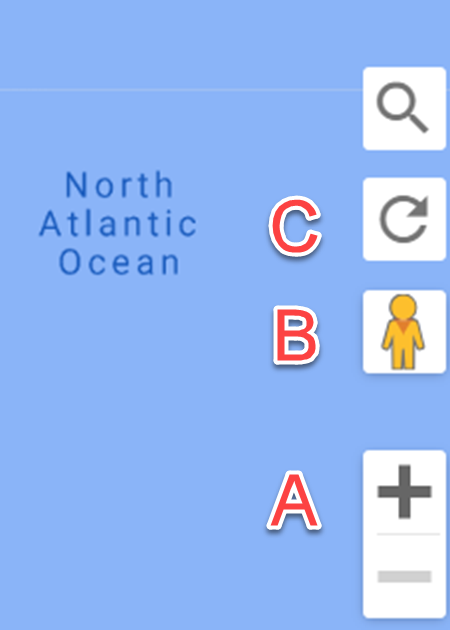
A - Click the plus and minus buttons in the bottom right corner of the map to zoom in and out.
B - Click the person icon in the bottom right corner of the map and drag it to a location on the map to see actual photo imagery of the location.
C - Click the reset icon in the bottom right corner of the map to reset the map with the assignment location in the center.
Assign a reinspector from the Reinspection Queue Map
- Locate the reinspections you want to assign on the map.
- Select the reinspections. You can click individual markers, or you can select one of the drawing tools at the top of the map and click and drag over a group of markers. Markers turn blue when they are selected.
- Click Assign. The Assign Reinspector dialog box appears.
- Select a reinspector from the dropdown menu.
- Click Assign.
Filter by reinspection status in Search
- Use the Reinspection Status filter in Search to find assignments with specific reinspection statuses.
Administrator and Reinspector roles
Administrators and reinspectors use the Reinspection Queue in different ways. Their workflows are explained in this section.
User One: Administrator
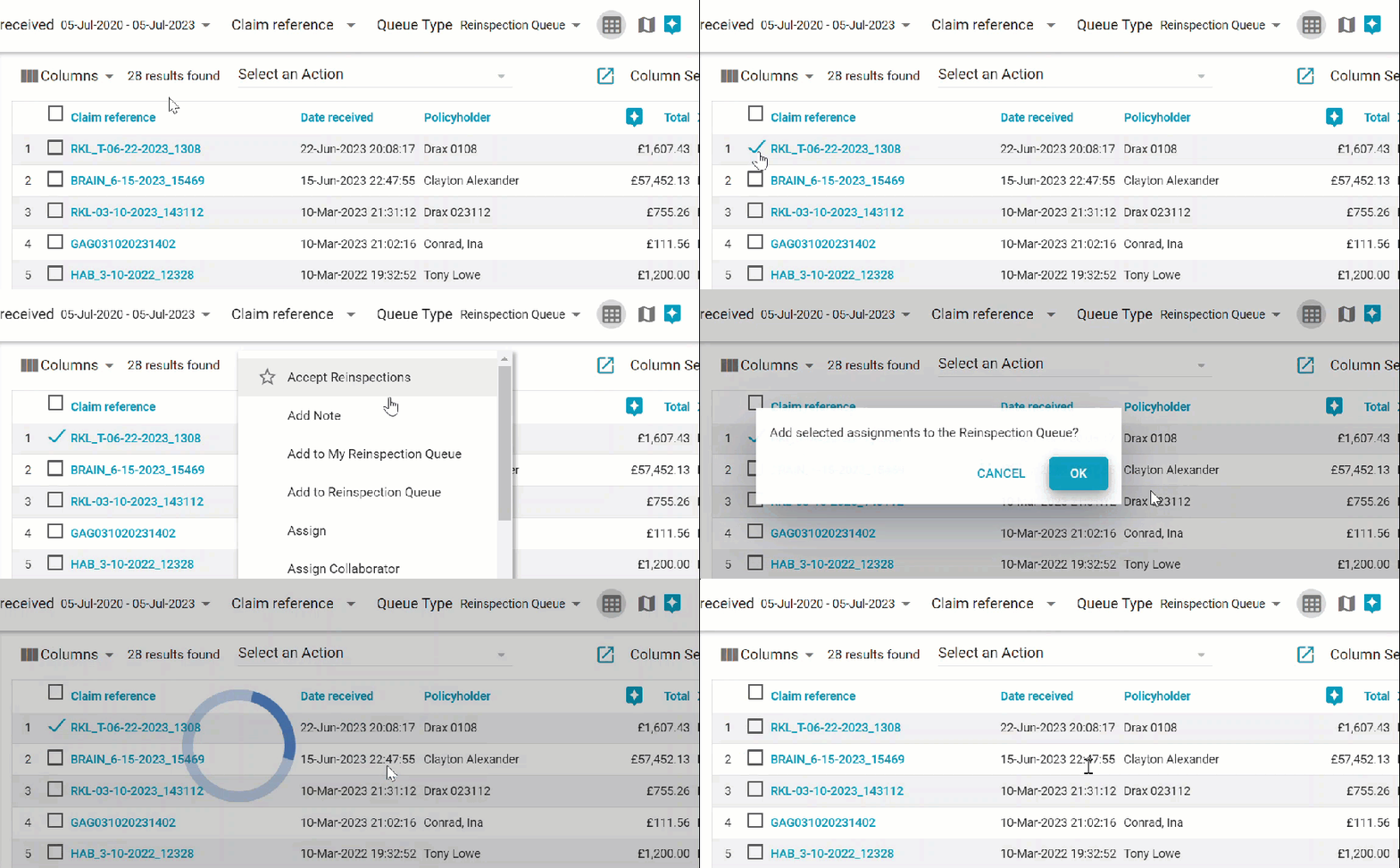
Add an estimate to Reinspection Queue from Search
- In Search, select the checkbox of one or more returned estimates.
- Select Add to Reinspection Queue from the Select an Action menu.
User Two: Reinspector
As a Reinspector, you may accept and complete reinspections, send status update notifications, and view/print the completed reinspection. There are two ways to complete reinspections (if your company is configured for it). Method 1 is to accept and complete the reinspection in XactAnalysis QR. Method 2 is to accept the reinspection in XactAnalysis QR and complete it in Xactimate. If you will be editing line items and measurements during the reinspection, Xactimate provides the added benefit of automatically adjusting the underwrites, overwrites, O&P, taxes, and more. If you complete the reinspection in XactAnalysis QR, the figures have to be adjusted manually. XactAnalysis QR is a good option if you will only be answering the customisable questions on the Reinspection Form and will not be making changes to the estimate.
Accept reinspection
- In the Reinspection Queue or My Reinspection Queue, select an estimate to reinspect. The Assignment Detail page appears.
- In the Quality Review Status section of the Details tab, go to the Reinspector Accepted line and select Accept/Reject/Cancel.
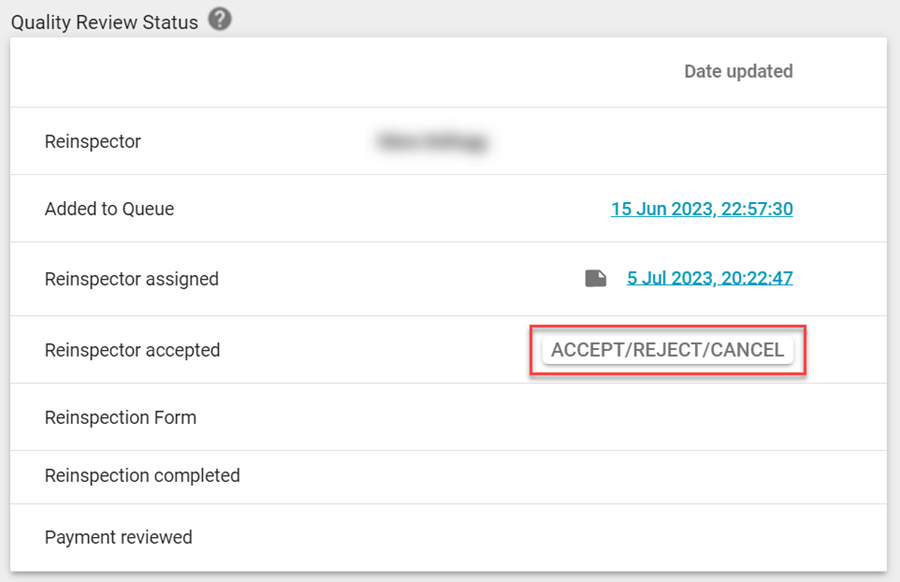
- In the dialog box that appears, if you select Cancel, the reinspection is canceled. If you select Reject, the reinspection is unassigned and sent back to the Reinspection Queue. To accept the reinspection, select Accept.
- You may choose to complete the reinspection in XactAnalysis QR or to complete the reinspection in Xactimate*.
- If you will be editing line items and measurements during the reinspection, Xactimate provides the added benefit of automatically adjusting the underwrites, overwrites, O&P, taxes, and more.
- If you complete the reinspection in XactAnalysis QR, the figures have to be adjusted manually. XactAnalysis QR is a good option if you will only be answering the customisable questions on the Reinspection Form and will not be making changes to the estimate.
If you choose to complete the reinspection in Xactimate, and there are multiple estimate versions, you can then select an estimate version to reinspect*. Only the most recently reinspected version of the estimate will be used for reporting purposes.
Accept multiple reinspections
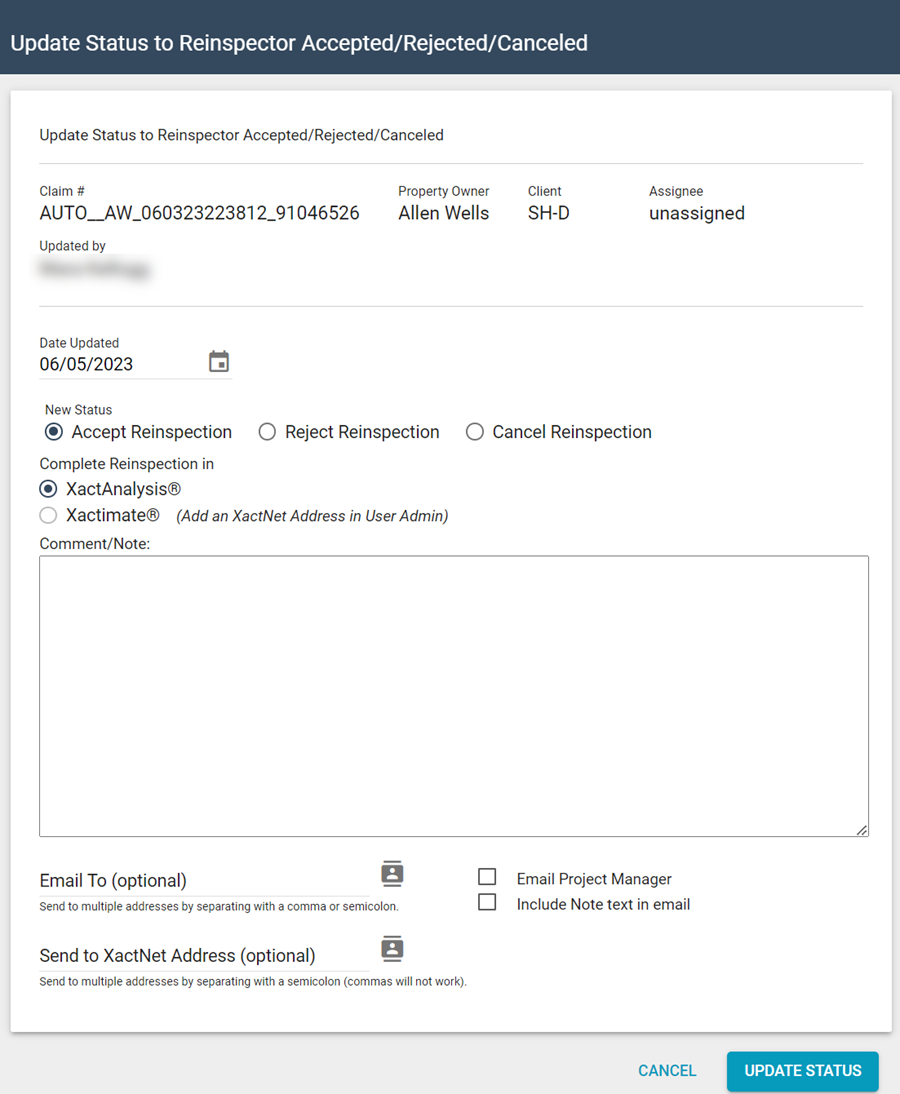
- In the Reinspection Queue or My Reinspection Queue, select the checkboxes of the estimates to be reinspected. In the Select an Action menu, select Accept Reinspections. The Update Status to Reinspector Accepted/Rejected/Canceled dialog box appears.
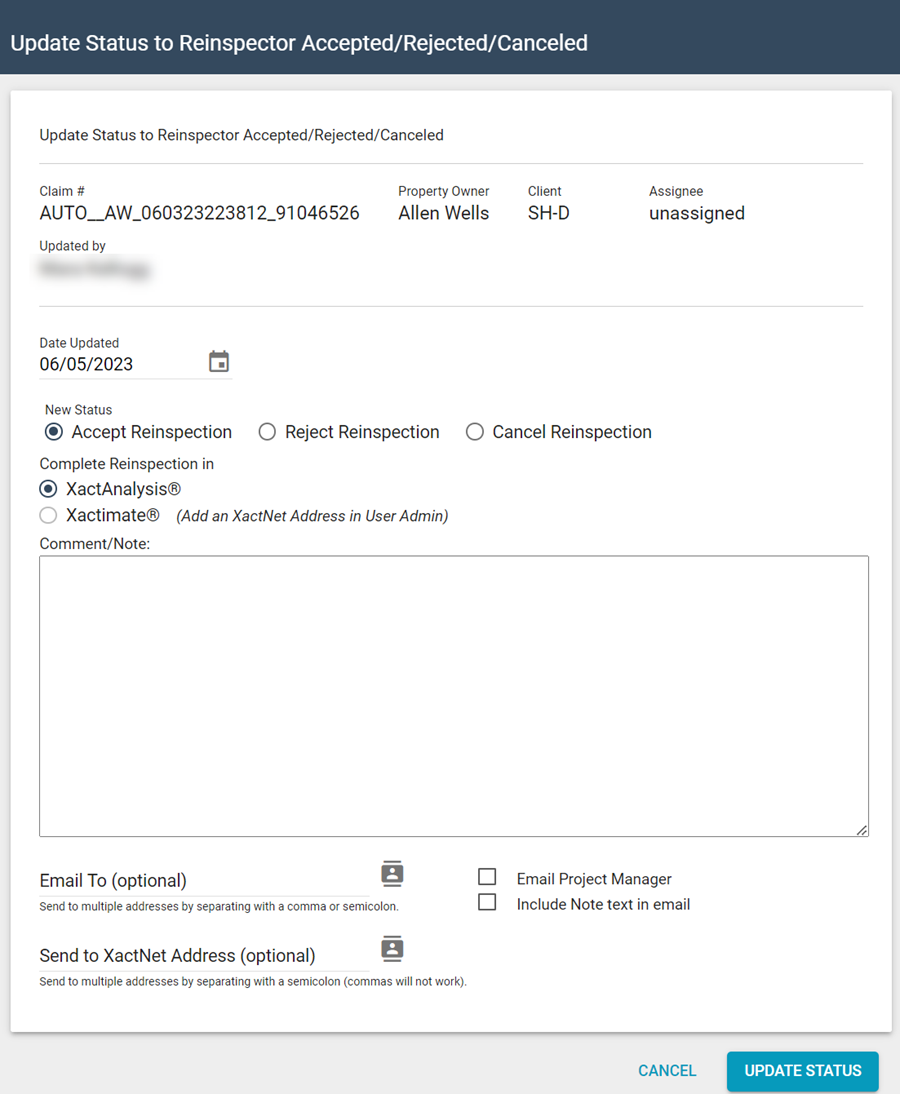
- Under Complete Reinspection in, select XactAnalysis if you want to complete the reinspections in XactAnalysis QR or Xactimate if you want to complete the reinspections in Xactimate.
- Click Update Status.
Method 1: Complete reinspection in XactAnalysis QR
After you have accepted the reinspection, the Reinspector Accepted status is updated, and a link to a new reinspection form appears in the Reinspection Status section of the Details tab.
- Click New Form.
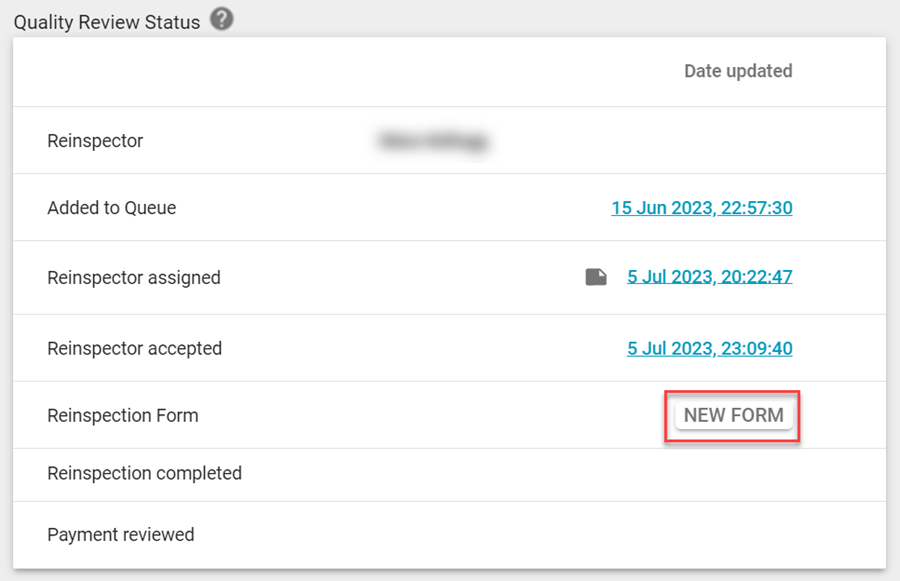
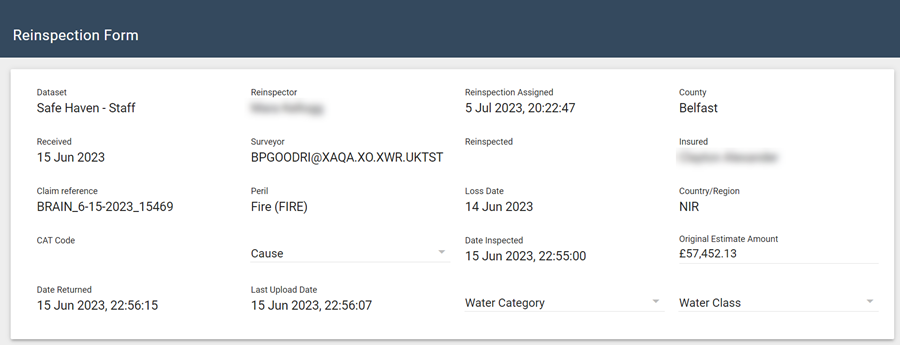
- You may keep the Reinspection Form open as you reinspect the estimate in XactAnalysis QR. To save the form, click Save at the bottom of the form.
- Complete by providing the missing claim information in the first section of the form. Some fields are automatically completed by XactAnalysis QR.
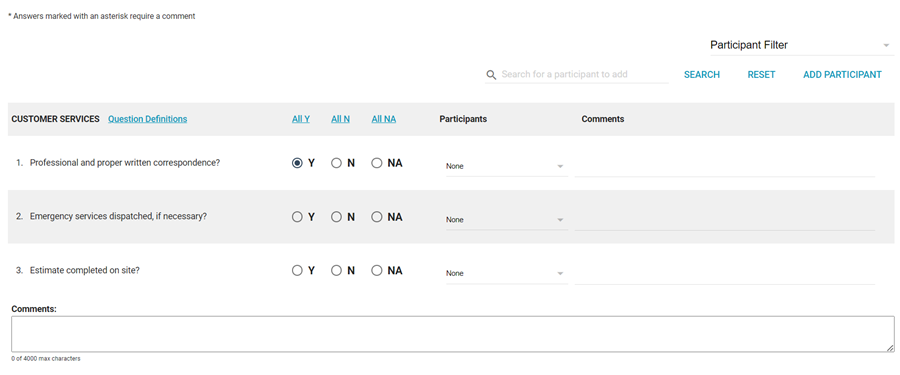
- In the next section, answer the reinspection questions by selecting the Yes/No radio buttons. You may comment on an individual answer using the Comments field to the right of the answer.
- Save the form.
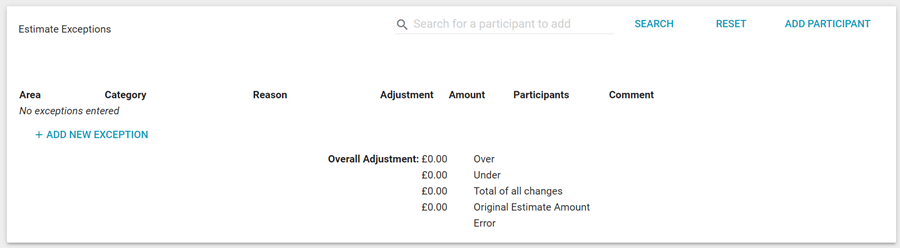
Exceptions are used to log overwrites and underwrites found in the estimate.
To add an exception (you may add more than one), perform the following steps:
- Select Add New.
- Select an area, category, and reason.
- Enter the adjustment amount, select over/under, and comment.
- Click Save. The Edit, Delete, and Copy links appear.
- Select Copy to copy an exception. You may use Copy to enter similar additional exceptions.
- Click Save after each exception entry.
- Select Delete to delete an exception.
Overall Adjustments appear below the list of exceptions.
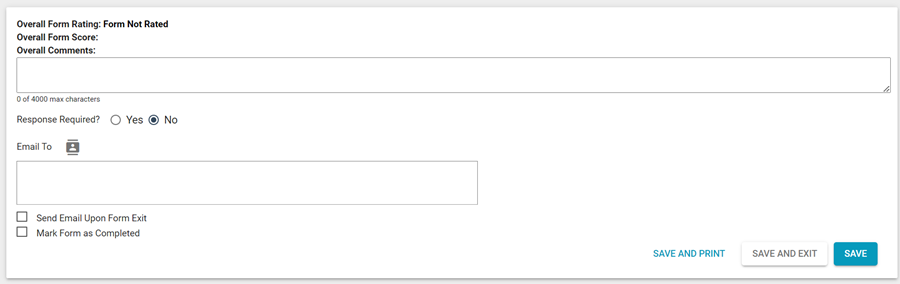
- In the Overall Comments field, enter your comments regarding the original estimate and the reinspected estimate, and any additional notes you want documented.
- If you want the email recipient to respond, select Yes in the Response Required? field and enter a deadline. The recipient’s email will say “Response required” in the subject line and specify the amount of time they have to respond in the body of the email. Their response email is added as a Note to the assignment.
- If you would like to send the form via email, type the recipient’s email address in the Email to field, or use the button to select an email address from your address book.
- Select the Send Email Upon Form Exit checkbox to send the reinspection form to recipients via email when you exit the form.
- Select the Mark Form as Completed checkbox when you are finished with the reinspection.
- Click Save, Save and Exit, or Save and Print.
Method 2: Complete reinspection in Xactimate
After you have accepted the reinspection, the Reinspector Accepted status time stamp appears in the Reinspection Status section of the Details tab. The assignment was sent to your Xactimate address.
- Sign in to Xactimate and connect to XactAnalysis.
- After being sent, the QR Assignment appears in your Projects.
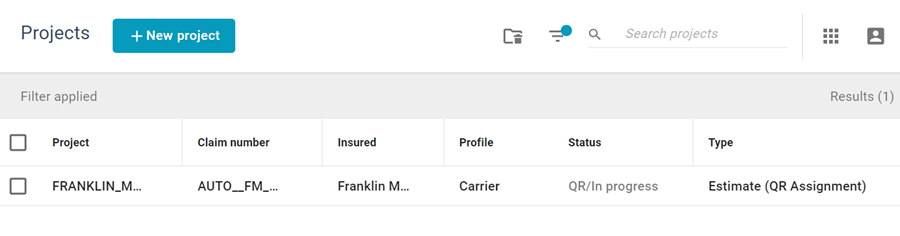
- Open the reinspection assignment, which is a baseline copy of the actual estimate. You are asked to select the price list and the tax jurisdiction for the assignment’s region. You (the reinspector) can review and make changes to the reinspection version of the estimate. Xactimate tracks all the changes and logs the appropriate overwrites or underwrites.
- When you are done making changes, select Complete on the sidebar.
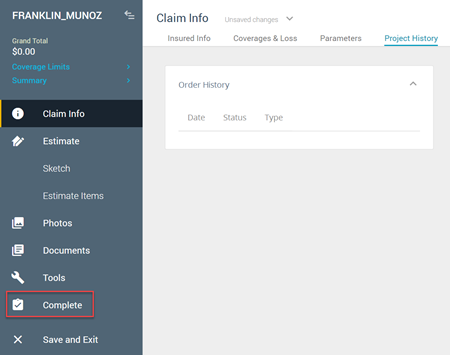
- In the Quality Review Wizard section, select Mark in review. This is the Xactimate version of the Reinspection Evaluation Form. The Quality Review Wizard opens to the Instructions page.
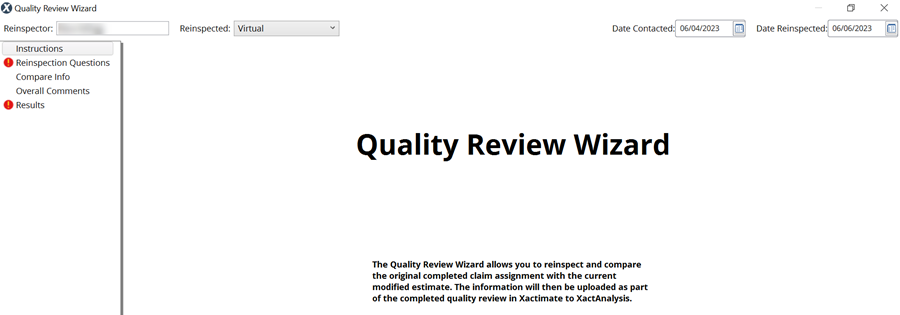
- Enter your name, Date Contacted, and Date Reinspected at the top of the page. In the Reinspected dropdown menu, select the method of reinspection.
- Click Next or select Reinspection Questions in the navigation tree.
- The reinspection questions appear. Select Yes, No, or Not Applicable (NA). You may comment on sections (if your company’s list is separated by sections) and individual questions.
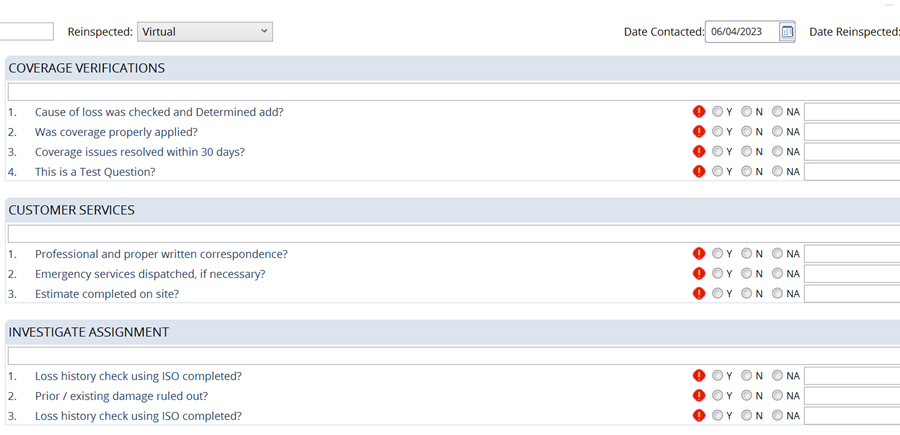
- After answering the reinspection questions, select Next or Compare Info in the navigation tree to compare your room and item changes to the original estimate’s rooms and items.
- Click Next or select Overall Comments in the navigation tree. Enter any additional comments for the review.
- Click Next or select Results in the navigation tree to review the changes in the Results page.
- The Results page itemises the changes by room and lists the reason for each changed item. A red “x” indicates that the item was removed. A green “+” indicates that the item was added. A blue arrow indicates that the item was edited.
- Xactimate automatically selects reasons for certain activities. If the reasons displayed are not correct, the reinspector may change them.
- If Xactimate is unable to determine the reason, the Reason field is highlighted in red, and the reinspector is required to select the appropriate reason.
- If item prices were reduced, the amount is included in the Total Overwrites because the original estimate was overwritten.
- If item prices were increased, the amount is included in the Total Underwrites because the original estimate was underwritten.
- The overwrites and underwrites are totaled and an Error % is calculated.
- Select a reason for any field highlighted in red.
- After you have entered all the required information, click Finish. Xactimate packages the information in the Reinspection Assignment for upload back to XactAnalysis QR.
- Exit the reinspection assignment.
- If you are connected to the Internet, the reinspected assignment is sent back to XactAnalysis QR. XactAnalysis QR receives the re-inspected estimate.
Mark reinspection Complete and view in Documents tab
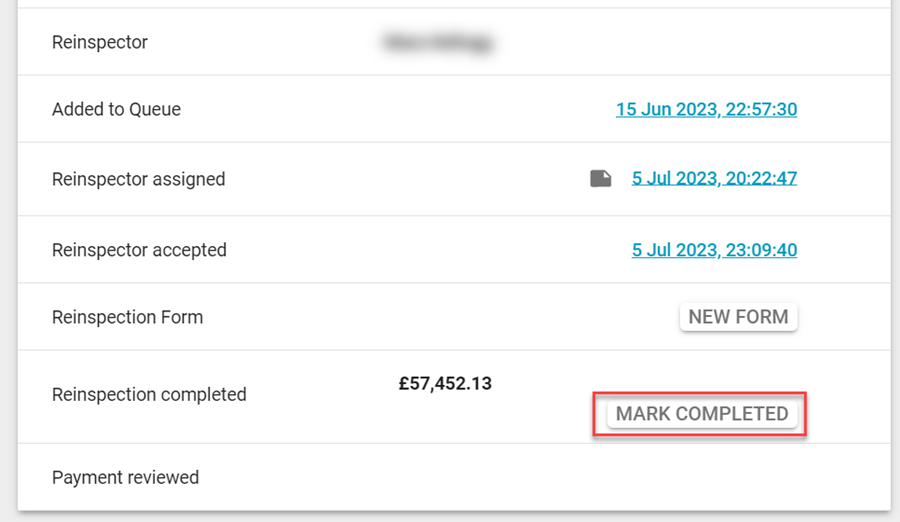
- Click Mark Completed in the Details tab. The Update Status dialog box appears. Select the new status of the assignment, then click Update Status. A time stamp appears by the Reinspection Completed status.
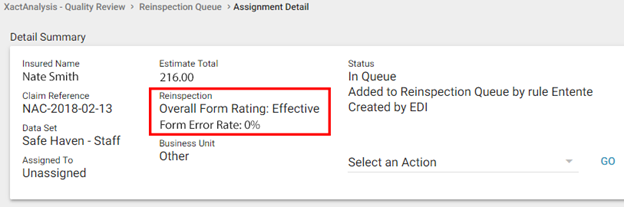
The reinspection form rating appears in the Detail Summary.
Whether the reinspection was completed through XactAnalysis QR or through Xactimate, the following events occur:
- The reports are populated with the information. See Quality Review Management Reports for more information.
- The Estimate Audit Report, Final Draft with/without Removal Depreciation Report, Report Rough Draft, and Variation Report are saved in the Documents tab.
- If multiple reinspection forms have been completed, they will all be saved to the Documents tab.
- The reinspection is removed from your Reinspection Queue.
- Personal and Program Rules may be triggered.
The Documents, Photos, and Sketches tabs in the Assignment Detail page show all documents, photos, and sketches that were uploaded with the reinspected estimate.