Program Rule Notifications
 Updated
by
Arianne G.
Updated
by
Arianne G.
The Program Rules module allows you to set up notifications to inform you of issues with service providers and internal programs. In the Assignment Escalation tab, you set up notifications for assignment escalation issues, and in Notification Setup, you determine exactly who should be notified regarding these issues. You can set up multiple employees to be notified for any location, and you can set up any employee to receive notifications for multiple locations.
When working with program rules, remember that the assignor is the creator of the assignment (the insurer, in most cases), and the assignee is the recipient of the assignment (the service provider).
The screen shots in this document are generic, and your company’s interface may vary.
Related: Personal Rules
Access Program Rules
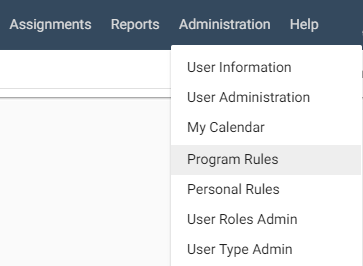
- To access Program Rules, select Program Rules from the Administration menu.
Assignment Escalation
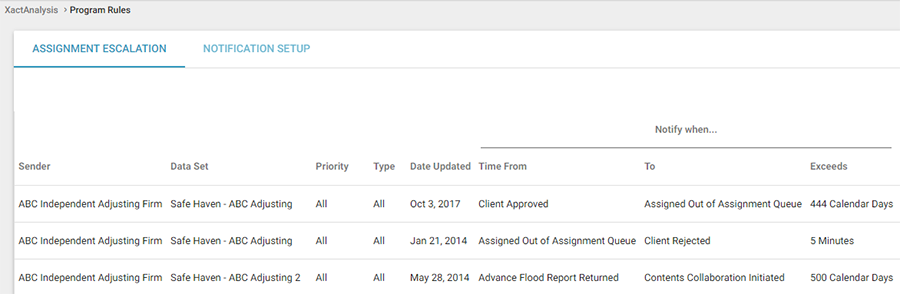
Assignment Escalation helps you handle assignments that are not promptly taken care of by the selected service provider. If this situation occurs, you can set up XactAnalysis to notify you, rotate the assignment to the next service provider, or both. Assignment Escalation simply allows XactAnalysis to escalate an assignment to the next service provider or back to you.
- Click the Assignment Escalation tab on the Program Rules page.
From here you can add, edit, and delete rules regarding assignment escalation.
- To delete a rule, click the Delete icon next to the rule you wish to delete. Your rule is removed from the Assignment Escalation page.
- To edit a rule, click the Edit icon next to the rule you wish to edit. Change the form criteria and click OK.
Add a new rule
- Click Add New Rule at the top of the page. The Add Escalation Rule dialogue box appears.
- Complete the Add Escalation Rule form as follows:
AUTOMATED ALERT
- Data Set: Select the data set for which you want the rule to apply.
- Priority: Select the assignment priority for which you want the rule to apply: All, Emergency, or Normal.
- Type: Select the type of assignment for which you want the rule to apply: All, Catastrophe, Non-Catastrophe.
- Business Unit: Select a business unit for which you want the rule to apply. Business units vary from company to company.
- When elapsed time between, and: Select two events for which you want actions taken if the elapsed time between them exceeds the time limit you specify. See Statuses for event definitions.
- Exceeds: Specify an amount of time in calendar or business days, hours, and minutes.
- Then take the following action: Select the check boxes for the actions that should occur after the specified time elapses:
- Notify us: This option sends email notifications to the people you specify in Notification Setup.
- Notify assignee: This option sends an email notification to the assignee. It also automatically creates an action item in the assignment.
- Notify the following email addresses: This option enables the Email Addresses field and allows you to enter multiple addresses separated by commas.
- Notify users in the Notification Centre: This option sends notifications within XactAnalysis via the Notification Centre.
- Send reminder to assignee every 30 days: This option sends a reminder email to the assignee every 30 days.
- Remove Assignment from Review Queue: This option removes the assignment from the Review Queue after the specified time elapses.
- Mark assignment as Reviewed: This option automatically marks assignments as Reviewed if they exceed a specified limit. When this check box is selected, you can also select a Notify assignee of review completion check box to notify the assignee when the rule is triggered.
- Cancel Assignment: This option cancels the assignment after the specified time elapses. Actions which do not apply to the selected events are grayed out and you cannot select them.
- Notify the following email addresses: If you select this check box, type in the email addresses where you want XactAnalysis notifications to be sent. Separate multiple addresses with a comma or semi-colon. Click the Personal Address Book icon to select addresses from your personal address book.
- Desk Adjuster: If the time elapses between your two events, and the desk adjuster you specify here is assigned, then send the notification. Click the Desk Adjuster SmartList button to search for a name.
HIERARCHY LOCATION
- Hierarchy Type: Select the hierarchy type for the assignments to which you want the rule to apply: Geographic, Organisational, Individual, or Custom Group.
- Area: Appears when the Geographic hierarchy type is selected. Click the Area SmartList button to select the areas for which you want the rule to apply.
- Org Levels: Appears when the Organisational hierarchy type is selected. Click the Org Levels SmartList button to select the Organi sational Levels for which you want the rule to apply.
- Adjuster/Contractor: Appears when the Individual hierarchy type is selected. Choose the adjuster/contractor for whom you want the rule to apply; start typing their name or XactNet address and select from the list that appears.
- When you have completed the form, click OK. Your new rule appears in the Assignment Escalation page.
Notification Setup
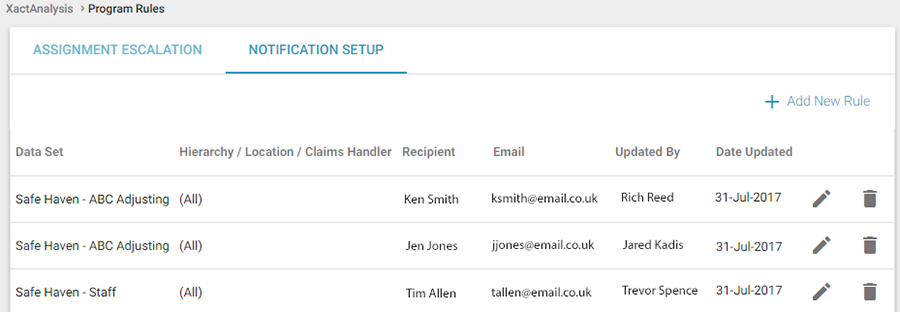
In Notification Setup, you determine exactly who should be notified regarding assignment escalation issues. Notification is handled by location; i.e., notifications for all service providers in a specific location go to the employee you set up to handle these notifications. You can set up multiple employees to be notified for any location, and you can set up any employee to receive notifications for multiple locations.
- To access, click the Notification Setup tab in the Program Rules page. The Notification Setup page appears.
- To delete a rule, click the Delete icon next to the rule you wish to delete. Your rule is removed from the Assignment Escalation page.
- To edit a rule, click the Edit icon next to the rule you wish to edit. Change the form criteria and click OK.
Add a rule
- Click Add New Rule. The Add Notification Rule dialogue box appears.
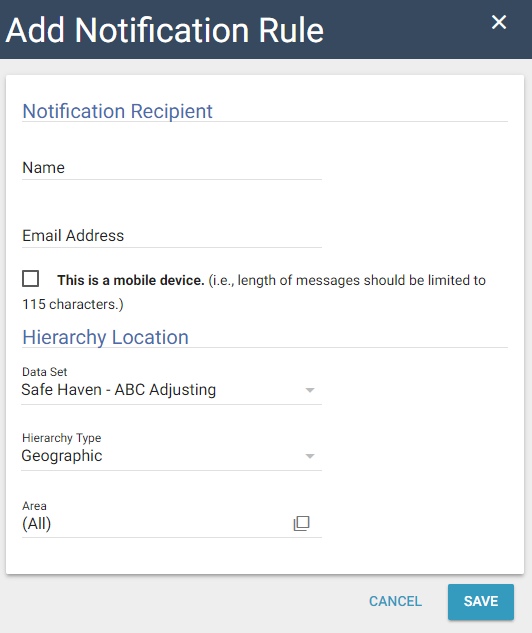
- Complete the Add Notification Rule form as follows:
NOTIFICATION RECIPIENT
- Name: Enter the recipient's name.
- Notification Type: Select whether the notification is sent as an email or a text message.
- Email Address: Enter the recipient's email address.
- Country Code: Select the country from which the recipient's phone number originates.
- Phone Number: Enter the recipient's phone number.
HIERARCHY LOCATION
- Data Set: Select a data set for the recipient to receive notifications for.
- Hierarchy Type: Select hierarchy types for the recipient to receive notifications for.
- Area: Appears when the Geographic hierarchy type is selected. Click the SmartList button to select an area for the recipient to receive notifications for. The recipient will be notified of escalated assignment issues in the areas you select.
- Org Levels: Appears when the Organisational hierarchy type is selected. Use the SmartList button to select organisational levels for the recipient to receive notifications for.
- Adjuster/Contractor: Appears when the Individual hierarchy type is selected. Start typing the name or XactNet address of a contractor and a list appears for you to select from. The recipient will be notified of escalated assignment issues regarding the named contractor.
- When you have completed the Add Notification Rule form, click OK. Your new rule appears in the Notification Setup page.