Manage Accounts
 Updated
by
Arianne G.
Updated
by
Arianne G.
On the XactAnalysis landing page, you can link or unlink XactAnalysis accounts with your Xactware ID. An account must be linked with your Xactware ID before you can access the account. See Xactware ID Help for more information about your Xactware ID. See User Administration for more information about managing users. To manage your Xactware ID, go to User Information.
Link an account
Accounts associated with your primary email address (Xactware ID) appear in the XactAnalysis Accounts area. If an account in this area is not linked with your Xactware ID, the account is labeled "unlinked." To link an account, follow the steps below:
- On the XactAnalysis landing page, select the account.
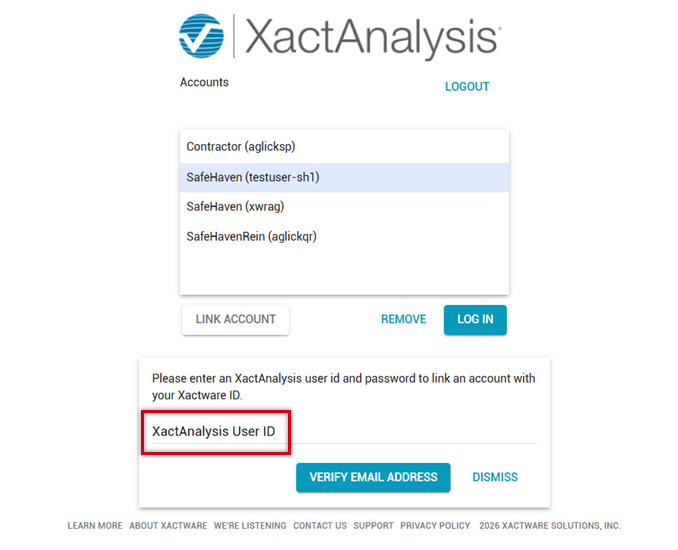
- If no accounts appear in the Accounts section, or if the desired account is missing, select Link Account.
- In the field that appears below, enter your XactAnalysis User ID for the account, and select Verify Email Address.
- Enter your XactAnalysis User ID and select Send Email.
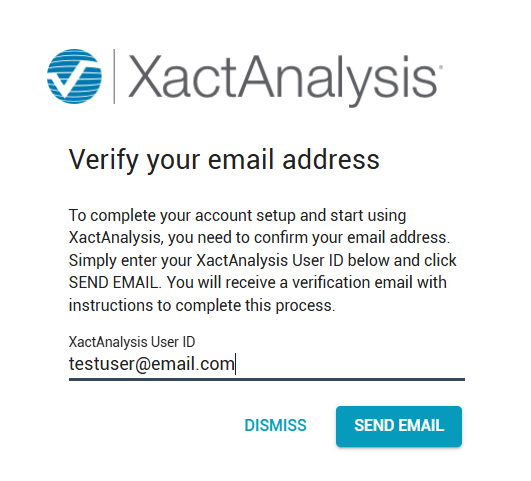
- Follow the instructions in the email to verify your email address.
- Return to the XactAnalysis landing page. The account is no longer labeled “unlinked” in the XactAnalysis Accounts area.
- Select the account and click Log In to go to the XactAnalysis Welcome page.
Unlink an account
- Select the account.
- Select Remove. The account is unlinked and removed from the XactAnalysis Accounts area.