Frequently asked questions
 Updated
by
Arianne G.
Updated
by
Arianne G.
System requirements
What are the browser requirements to run XactAnalysis QR?
Visit https://www.verisk.com/resources/system-requirements/xactanalysis-system-requirements/ for system requirements for XactAnalysis QR.
Login and password questions
Why can't I log in?
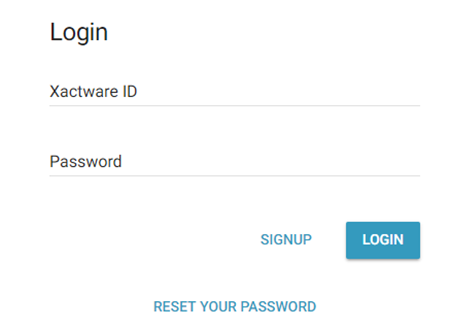
If you can't log in from the XactAnalysis login page:
You may need to create an Xactware ID, as all users are now required to use an Xactware ID to log in to XactAnalysis products. See Xactware ID Help for information about creating an Xactware ID and linking it to your XactAnalysis accounts.
If you can't log in from the landing page:
If you are a new user, your user may not have any Data Set / Hierarchy rights or Application rights. Ask your administrator to add these rights for your user. You must have these rights to log in.
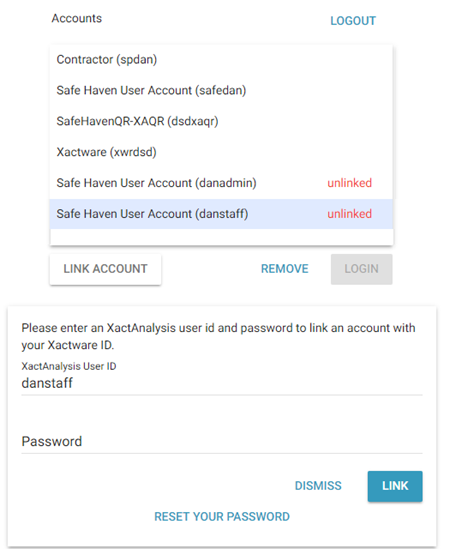
If you can't link your account on the landing page:
Your XactAnalysis account password may be expired. Click I forgot my password to reset your password. Or your account administrator can reset your password for you.
Or
Your account may be locked because of too many failed linking attempts. Contact your account administrator for assistance.
How do I reset my Xactware ID password or XactAnalysis account password?
To reset your Xactware ID password, click I forgot my Xactware ID password on the XactAnalysis login page and follow the process to reset your password.
To reset a password for a specific XactAnalysis account, click I forgot my password on the landing page and follow the process to reset the password.
How do I change my Xactware ID?
- Go to the User Information page in the Administration menu, and click the Edit icon.

- On the Xactware ID page, change any of the following: Xactware ID, First Name, Last Name, Phone Number, Alternate Email Address, Password.
- Click Save.
- Save your changes on the User Information page.
How do I change my Xactware ID password?
- Go to the User Information page in the Administration menu, and click the Edit icon next to Xactware ID.
- On the Xactware ID page, click Change Password.
- On the Change User Password page, enter your old password, then enter your new password.
- Verify the new password, and click Change Password.
- Save your changes on the Xactware ID and User Information pages.
Assignment questions
How do I assign a claim from the Assignment Queue?
To assign a claim:
- Select the Select Points check box and click the house icons for the assignments to assign. You can select multiple assignments by clicking on the map and dragging your mouse over an area.
- Click Assign.
OR
- Zoom in on the map until you can see a hyperlink for [number] Shown in Map Area. Click the hyperlink number.
- In the Results page, select the check boxes for the assignments you want to assign.
- Select Assign from the Select an Action drop-down menu. Click Go.
See Assignment Queue > Assign from Assignment Queue in the Interactive User’s Guide for more information.
How do I access the Assignment Queue?
Select XactAnalysis Assignment Queue® from the Assignments menu. You must have the Run XactAnalysis Application right to access the Assignment Queue.
See Assignment Queue in the Interactive User’s Guide for more information.
What is the assignment workflow in XactAnalysis QR?
After a claim is reported to a carrier and the estimate is complete, the estimate may be sent to the reinspection queue. Organizations can send estimates manually to reinspection or choose unique triggers to automatically send estimates.
When the assignment is sent to the reinspection queue, it is assigned to a reinspection agent. The agent completes the reinspection, and the reinspection data is added to reports.
See Getting Started in the Interactive User's Guide for more information about this workflow and other XactAnalysis QR features.
Why can’t I assign a specific adjuster to an assignment?
The following situations prevent you from assigning a specific adjuster/contractor to an assignment:
- The adjuster/contractor is not qualified in XactAnalysis
- The adjuster/contractor does not have rights to the Service Area of the assignment.
- The adjuster/contractor is not qualified to handle the Job Type or Size of the assignment.
How do I resend an assignment?
Resend an assignment using one of the following methods:
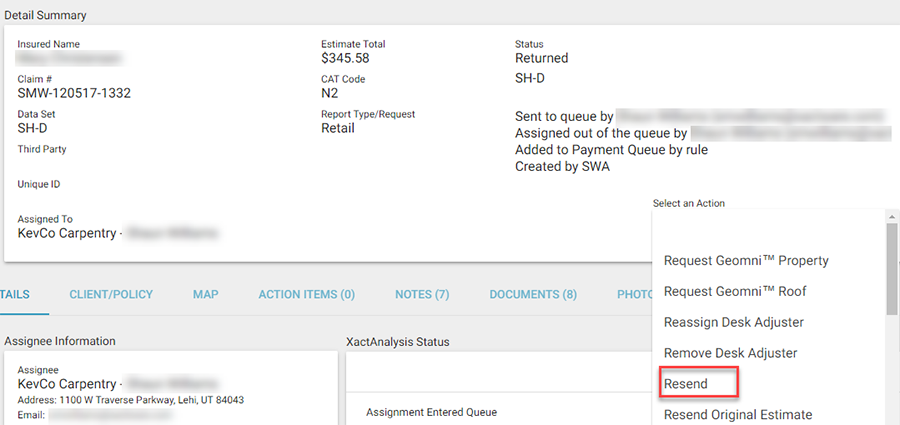
Go to the Assignment Detail page, select Resend from the Select an Action drop-down menu, and click Go.
Or
In Search, select the check box for the assignments you would like to resend. If there are multiple versions of the assignment, be sure to select the version you want to send. Then select Resend* or Resend Original* from the Select an Action drop-down menu and click Go.
*Contact your product specialist or account manager to enable these options for your company.
What happens to a claim when it is canceled?
How do I cancel an assignment?
Go to the Assignment Detail page for the assignment you want to cancel.
- Select Cancel from the Select an Action drop-down menu and click Go.
OR
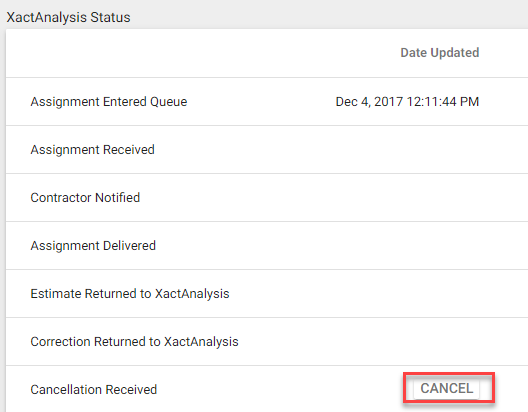
- Click Cancel in the XactAnalysis Status section.
- Enter your reason for canceling the assignment.
- Click Cancel Assignment.
Why can’t I cancel an assignment?
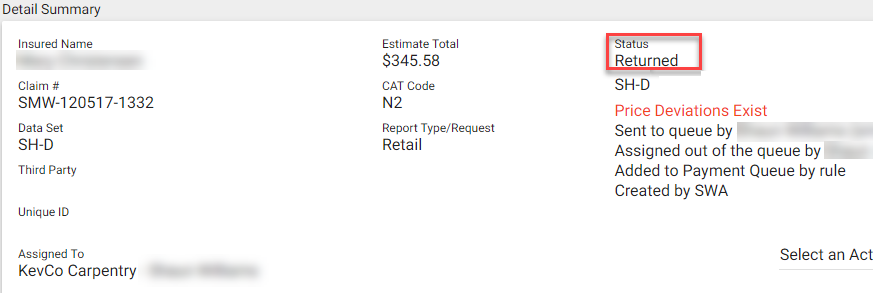
You can only cancel assignments with a status of In Queue, Notified, Delivered, or Rejected.
You cannot cancel assignments with a status of Assigned from Queue, Returned Pending, Returned, Corrected, or Canceled.
The current assignment status is listed in the Detail Summary of each assignment.
How do I reassign an assignment?
You can reassign an assignment from Advanced Search Results or Assignment Detail.
If you are in Search, select the check boxes for the assignments you want to reassign. select Reassign from the Select an Action drop-down menu. Click Go. The Reassign dialog box appears.
If you are in Assignment Detail, select Reassign from the Select an Action drop-down menu in the Detail Summary. Click Go. The Reassign dialog box appears.
- Select where you want to reassign the assignment (to a new contractor, program location, or data set).
- Click Reassign.
For more information, see Reassign an Assignment.
Why can’t I reassign an assignment?
The following situations prevent you from reassigning assignments:
- The assignment has not been assigned to an adjuster/contractor. It has a status of In Queue. View the status in the Detail Summary.
- If you are reassigning more than one assignment at a time, the assignments selected cannot be from different data sets.
For more information, see Reassign an Assignment.
Why wasn’t the assignment received?
The adjuster has not clicked Connect in Xactimate to receive the assignment.
The adjuster has the wrong version of Xactimate.
How does estimate collaboration work?
Estimate Collaboration allows a claim rep/adjuster who is not the assignee to perform work on a returned estimate without changing ownership (assignee). When an estimate is checked out for collaboration, only the collaborator may do work on the estimate.
For more information, see Estimate Collaboration in the Interactive User’s Guide.
Report questions
How do I run Management/Activity reports?
You must first have the Run Management Reports application right. For more information about adding rights see User Administration in the Interactive User's Guide. To run a report,
- Select a report from the Report drop-down menu.
- Use the menus, fields, and check boxes in the Report Criteria and Report Filters sections to filter the data you want displayed in the report.
- Choose a Start Date and End Date for the report. Click Continue.
- In the confirmation screen that appears, review the information and click Submit. You are sent an email with a link to the report when the report is ready to be viewed.
For more information, see Management/Activity Reports in the Interactive User’s Guide.
How do I create a customized report?
To run a custom (ad hoc) report, submit a request to your XactAnalysis representative.
How do Custom Groups work?
You create a group of adjusters, contractors, or reinspectors in Custom Groups. You can then run management/activity reports for only the individuals in the group.
See Custom Groups in the Interactive User’s Guide for more information.
How do I create a custom reporting group?
Go to Custom Groups in the Administration menu. From there you can create different groups of adjusters, contractors, or reinspectors and generate reports specific to these custom groups.
For more information about creating a custom group, see Custom Groups in the Interactive User’s Guide.
How are valuation reports used in XactAnalysis?
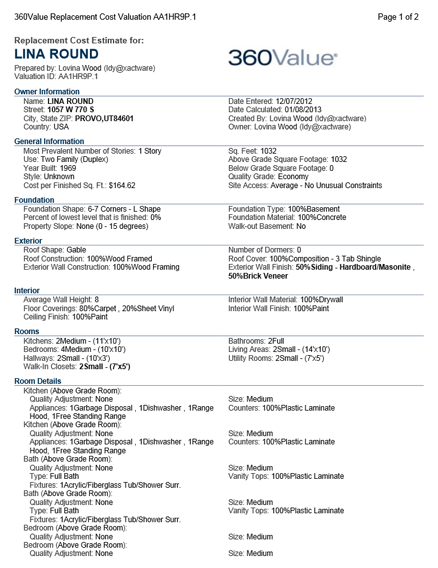
In XactAnalysis, valuation reports can be imported from either 360Value or the full-featured desktop version of Xactimate. In both products, the valuation report is based on Xactware’s pricing database, researched down to the postal code, and takes into account local socio-economic factors. In XactAnalysis, a valuation report typically describes a property’s replacement cost.
Valuation reports created in both 360Value and the full-featured version of Xactimate look similar. Here is an example of a 360Value valuation report:
How do I view a valuation report?
Whether your company creates valuation reports with 360Value or the full-featured desktop version of Xactimate, XactAnalysis can be configured to automatically import a valuation into a claim with a matching policy number.
For example, if your company uses 360Value and has XactAnalysis configured accordingly, when you create an assignment, XactAnalysis sends that assignment’s policy number to 360Value. If 360Value has a valuation on file that matches that policy number, then 360Value sends back a PDF of the valuation report to XactAnalysis. The valuation report appears in the Documents tab of the Assignment Detail page.
Contact your product specialist or account manager to enable this functionality.
User Administration questions
Do office or organization levels affect the right to receive an assignment?
Organization Hierarchy does not affect your ability to receive assignments. However, if you do not have any organization hierarchy rights, you cannot view assignments in XactAnalysis. You can only view assignments for the regions that you have rights to.
Organization Hierarchy is mainly used for reporting purposes. It allows your company to break down its structure by region or management level and then run a report on only a specific group.
How do organization rights affect user rights?
A user has rights to access data for their level and all the levels beneath theirs in the organization hierarchy.
How do I set up a new XactAnalysis QR user?
- Go to User Administration in the Administration menu
- Click Add A New User.
- Enter information about the user in the User Properties fields and click Save. The Edit User page appears.
- Add User Roles (if applicable), Data Set / Hierarchy rights, Organization Rights, and Application Rights. Click Save.
For more information, see User Administration > Add Users in the Interactive User’s Guide.
How do I add or delete an XactAnalysis user?
Select User Administration in the Administration menu.
To add a new user, see "How do I set up a new XactAnalysis user?" above.
To delete a user, select the check box for that user and click Delete Selected User(s). Click OK.
For more information, see User Administration in the Interactive User’s Guide.
How do I add a data set to my user?
Ask your administrator to add these rights for your user. If you have User Admin rights,
- Select User Administration from the Administration menu.
- Click Add New Right next to Data Set / Hierarchy
- Select the data set you wish to add, and click Add Right. Save your changes.
For more information, see User Administration in the Interactive User’s Guide.
How does User Roles Admin work?
User Roles Admin enables you to create groups with defined application rights and add users to those groups. To access User Roles Admin and set up user roles
- Select User Roles Admin from the Administration menu.
- Click Add a User Role. Enter a name for the user role.
- Select Role Rights and assign rights to this role.
- Select the check boxes to assign application rights. Click Save.
Your new User Role group will appear in User Administration and you can assign new users to it.
For more information, see User Administration in the Interactive User’s Guide.
How do Personal Rules work?
XactAnalysis QR notifies you when a rule that you set for a specific event occurs, such as assignment status change. For more information, see Personal Rules in the Interactive User’s Guide.
What’s the difference between a Personal Rule and a Program Rule?
A personal rule informs only the person who created it when an event occurs. A program rule informs one or more people when an amount of time has elapsed between two events.
How does Organization Hierarchy work?
Organization Hierarchy enables your company to set up its organizational structure in XactAnalysis by grouping claim reps, adjusters, individual contractors, and managers (anybody who has an XactNet address) into overlapping teams based on a company's unique chain of command.
XactAnalysis accommodates up to seven different command levels, often the top level equivalent to corporate management and the bottom level equivalent to individual claim reps or adjusters. The organizational hierarchy is set up and altered by management in your company with the appropriate rights.
When organizational hierarchy is set up, program rules and personal rules can be applied to the levels and branches of a hierarchy, reports can be generated based on hierarchy, and Advanced Search filters can be applied based on hierarchy.
How does Geographic Hierarchy work?
The geographic hierarchy enables you to set up your company’s geographical structure in XactAnalysis. The geographic hierarchy may be altered by management in your company with the appropriate rights.